
Veeam Data Platform 13.1 has officially landed! Technically speaking this is classed as a point release, typically associated with bug fixes and quality‑of‑life improvements. But this release is so much more than that. With over 70 new enhancements across the entire VDP suite, 13.1 delivers a wave of new features as well as expanded platform support that helps strengthen your data resiliency.
The VDP graphic below is the perfect snapshot of the sheer number of new capabilities packed into this release.
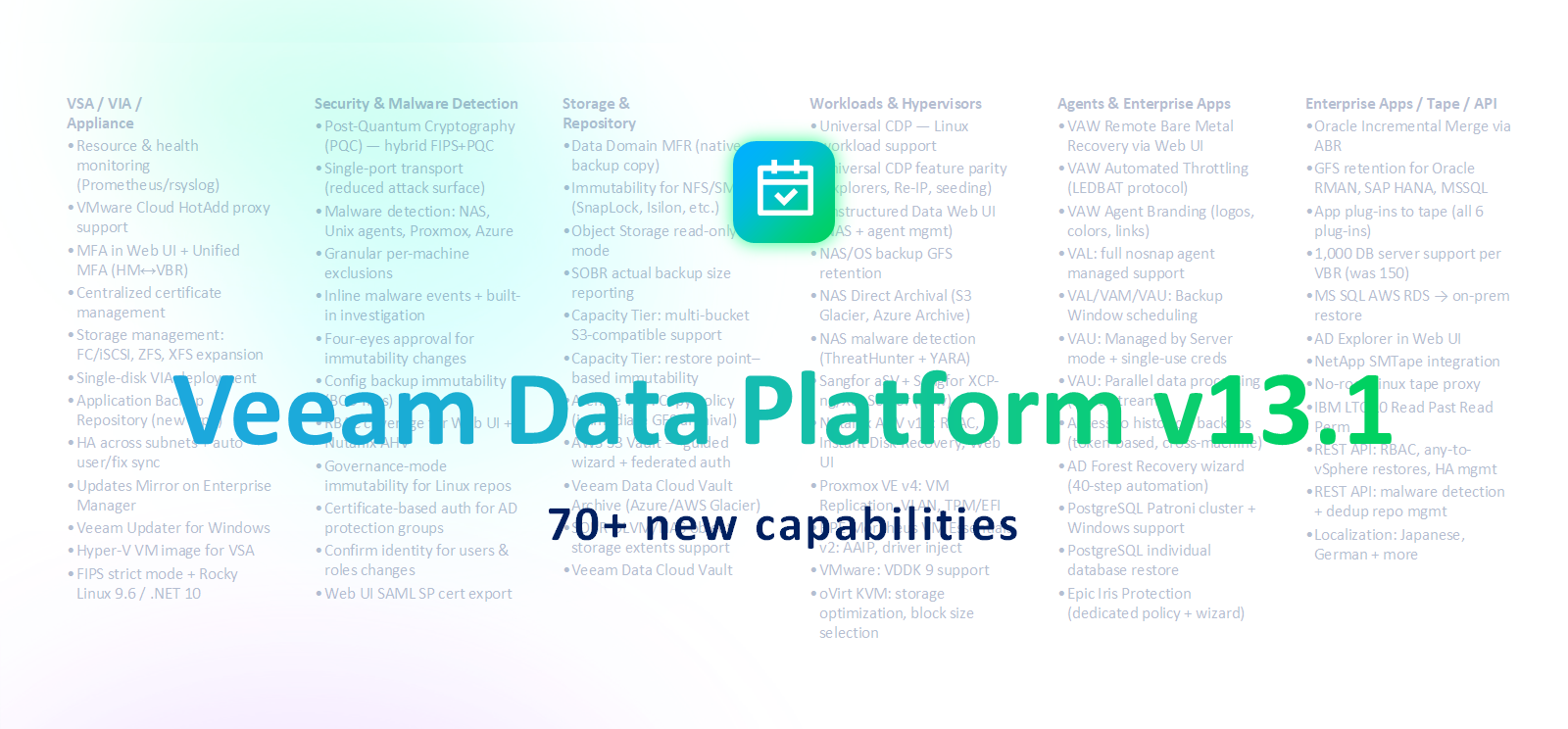
You can find a full breakdown of what’s new for each product below.
Veeam Backup & Replication: https://www.veeam.com/veeam_backup_13_1_whats_new_wn.pdf
Veeam ONE: https://www.veeam.com/veeam_one_13_1_whats_new_wn.pdf
Veeam Recovery Orchestrator: https://www.veeam.com/veeam_orchestrator_13_1_whats_new_wn.pdf
Veeam Backup & Replication Upgrade
To kick things off, let’s look at how to upgrade your existing Veeam Backup & Replication environment to 13.1. Whether you’re running a classic Windows deployment or using the Veeam Software Appliance, I’ve included step‑by‑step instructions for both approaches, so you’re covered regardless of your setup.
Select from the links below to jump to the walkthrough for your deployment scenario:
🪟Veeam Backup & Replication on Windows
All upgrades to 13.1.0.411 were performed using build 13.0.2.29.
Veeam Software Appliance
With the new Veeam Software Appliance, patching is now simplified thanks to the integrated update engine. Let’s take a look at what this process looks like.
The first step involves logging into the B&R web UI, where you should see a notification relating to new updates.
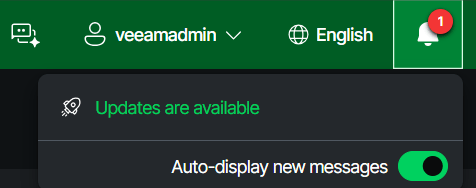
Clicking the Updates are available link will open the Veeam Updater in a new browser tab. From here we can see that 13.1 is available for install, so let’s go ahead and select it.
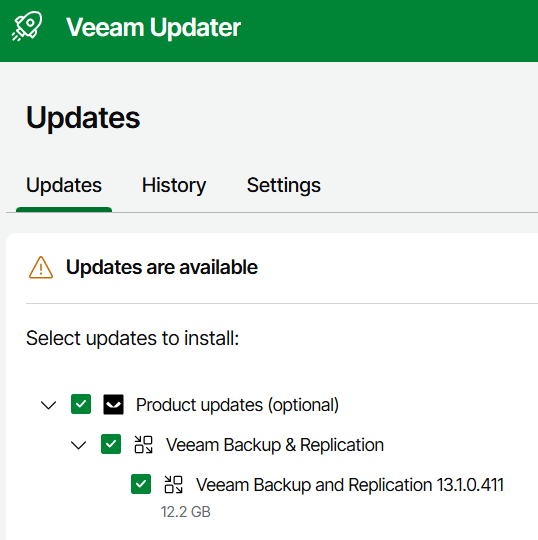
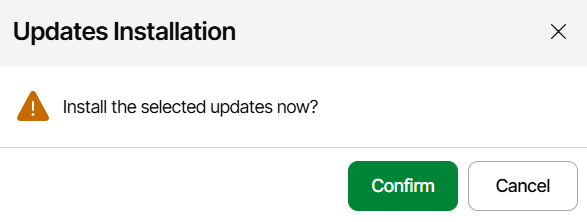
On the right side of the screen the default option is to Install updates now however it’s also possible to schedule the update to occur later at a time of your choosing. Either way, we get a reminder to take a configuration backup before initiating the update – this step is highly recommended to ensure you have a rollback option should the upgrade not go to plan.

Once you are ready to begin, hit the Install Updates Now button then click Confirm to begin.
Prior to the update starting, a validation check of your configuration is performed to find any compatibility issues. In my case, it popped up with the below issue.
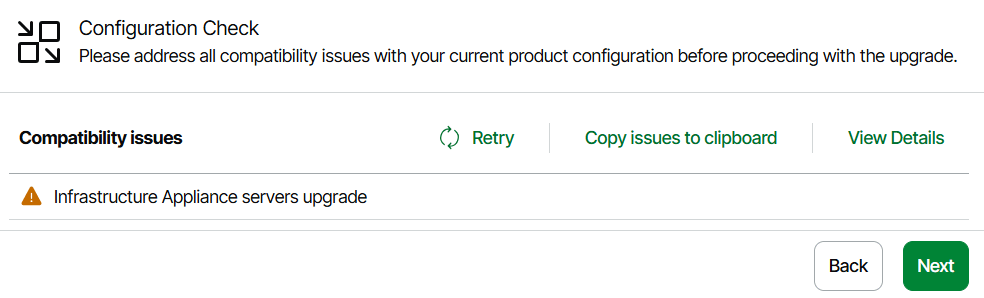
Clicking View Details provides a summary of the issue which, in this case advises the update process could take longer than usual to complete. This message seems to be specific to the 13.1 upgrade so it’s likely that you will recieve the same one too.
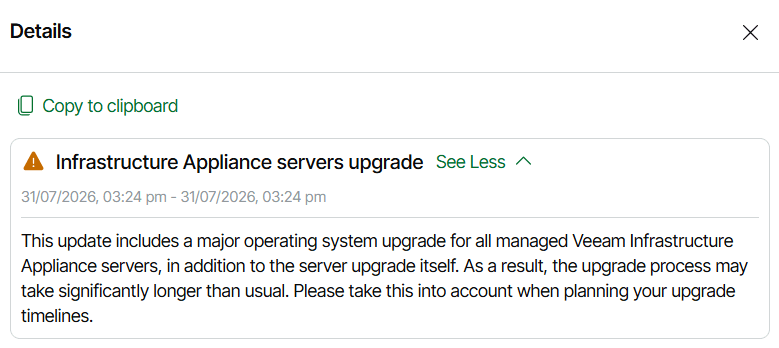
If you have any issues displayed other than one the above, it is recommended to work through resolving them before moving onto the next step.
Clicking Next will display the below screen.
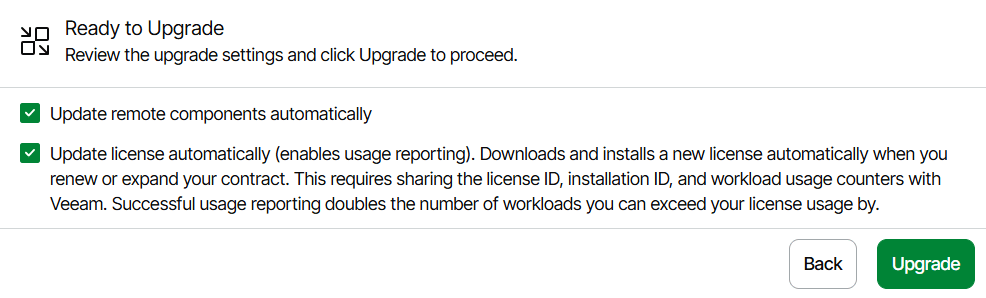
I’m going to leave the default options selected here and click Upgrade.
As the upgrade progresses, the current status will be shown on screen.
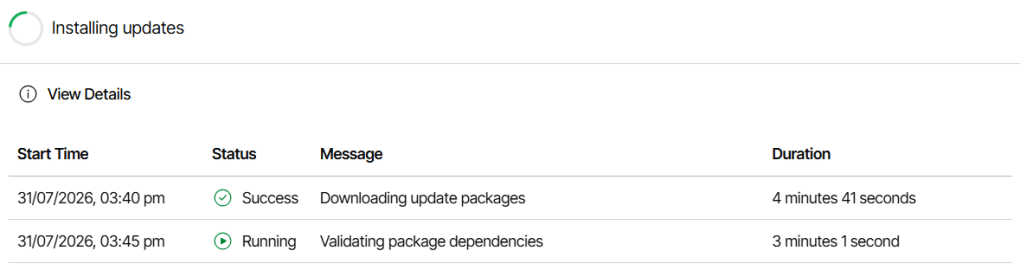
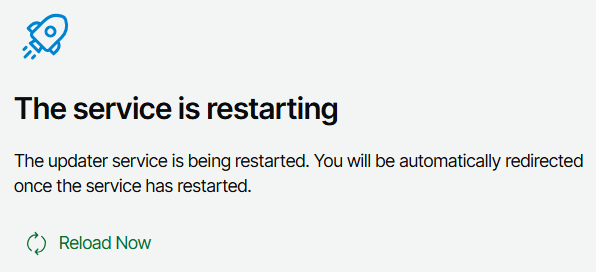
Once the upgrade is complete, the updater service is restarted and you will be prompted to login again.
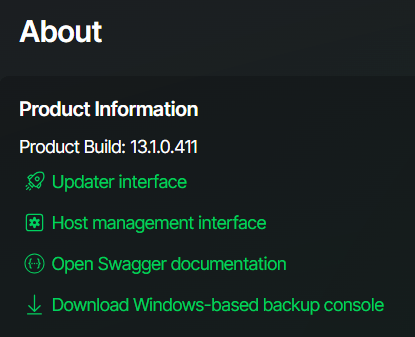
Once logged back in we can confirm we are running the new 13.1 build under Configuration > About
Veeam Backup & Replication on Windows
Important: Customers planning to migrate from a Microsoft Windows installation to Veeam Software Appliance should not upgrade to version 13.1. Stay on the latest 13.0 patch release and contact Veeam Support for migration assistance.
The minimum build required to upgrade to 13.1 is 12.3.1.1139.
The process of updating the Windows version of VBR is the same as with previous versions, requiring you to manually download and run the ISO. However, the good news is there are some changes coming to make the upgrade process more streamlined – more on that later on.
As always, taking a configuration backup prior to performing the upgrade is highly recommended to ensure you have a rollback option should it not go to plan.
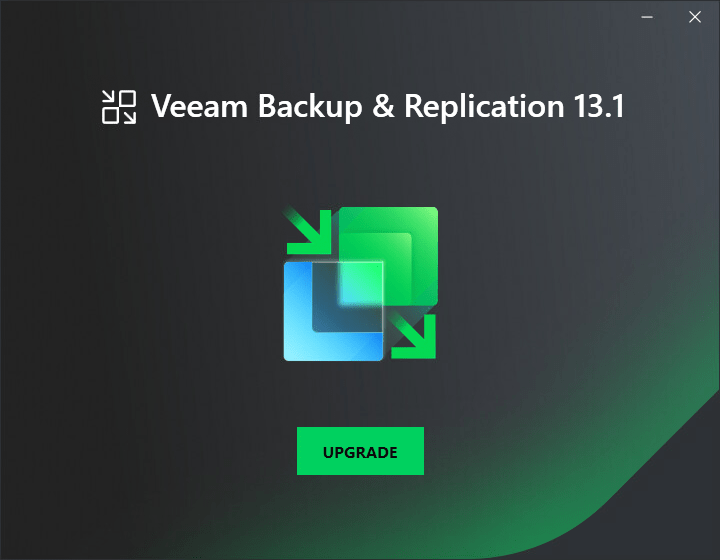
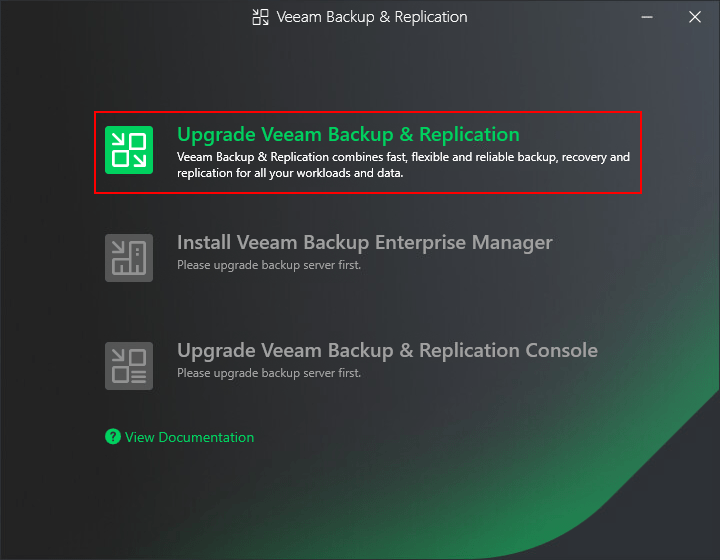
Once the ISO has been mounted, launch the setup executable and run through the interactive wizard.
One of the pre-requisites for 13.1 is Microsoft .NET 10. If your backup server doesn’t already have this installed, you will be prompted to install it before continuing.

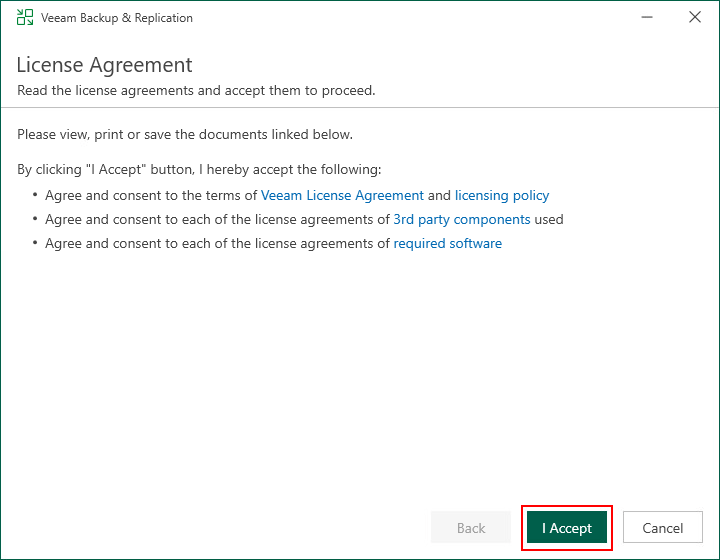
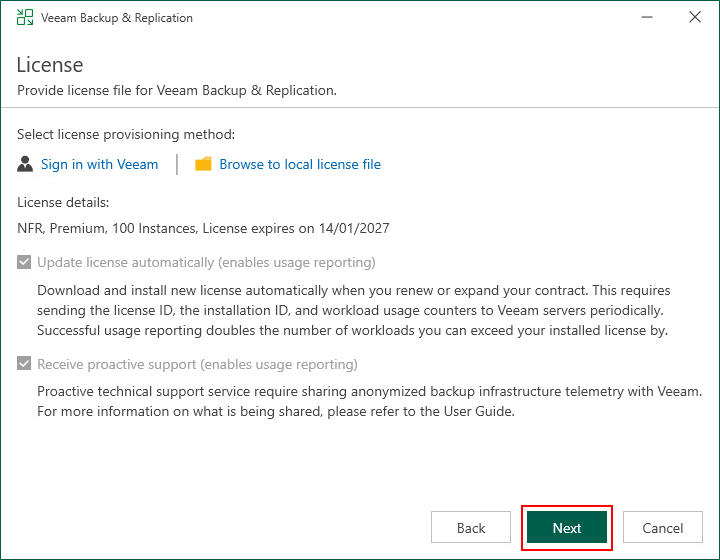

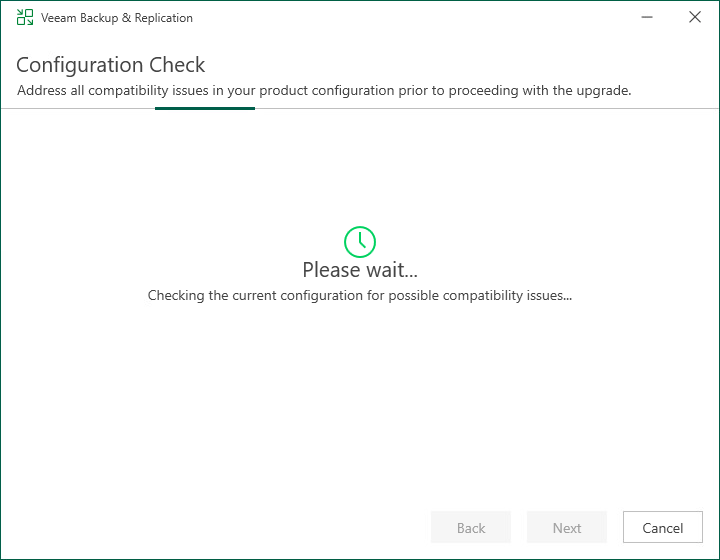
You can see below that the configuration check found a few issues which are both specifically related to the 13.1 update. Neither of these will prevent you from progressing with the upgrade and should be treated more as a warning.

New Veeam Updater service – this is the new update method I mentioned earlier, which will provide the same simplified update experience that the VSA has. Clicking the associated link opens KB4840 which explains how this new feature works. This is definitely worth a read as it will change the way updates are handled on the Windows platform going forward.
Infrastructure Appliance servers upgrade – hovering the mouse cursor over this message displays a warning that the upgrade may take longer than usual, prompting you to plan your outage accordingly.
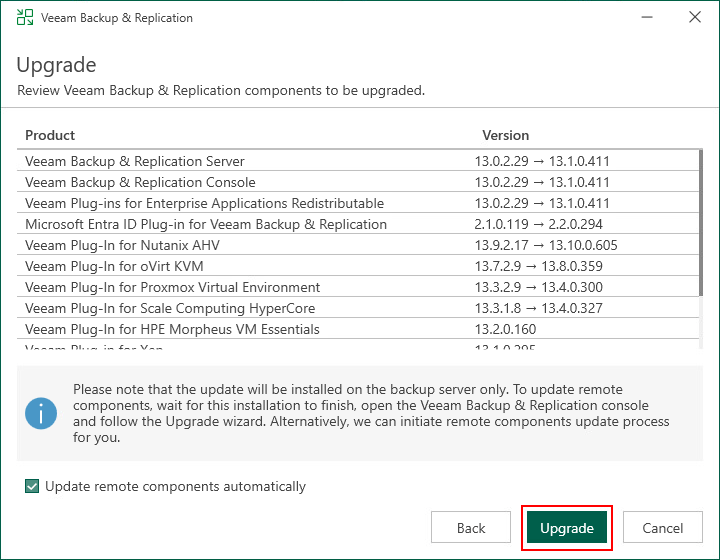
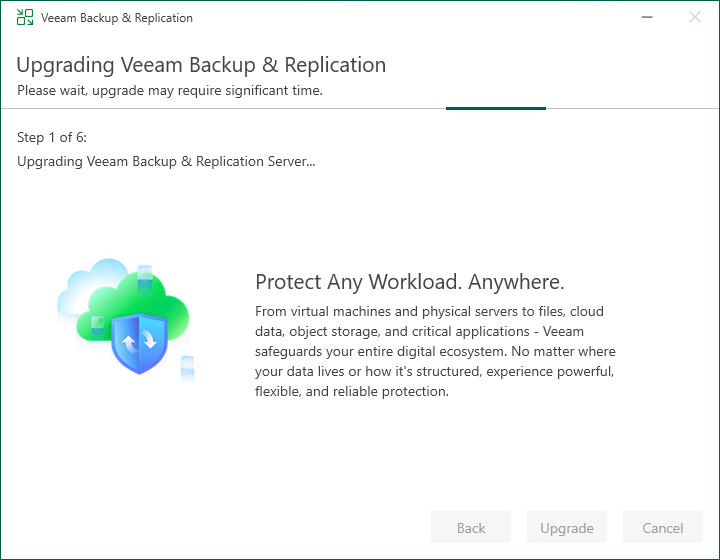
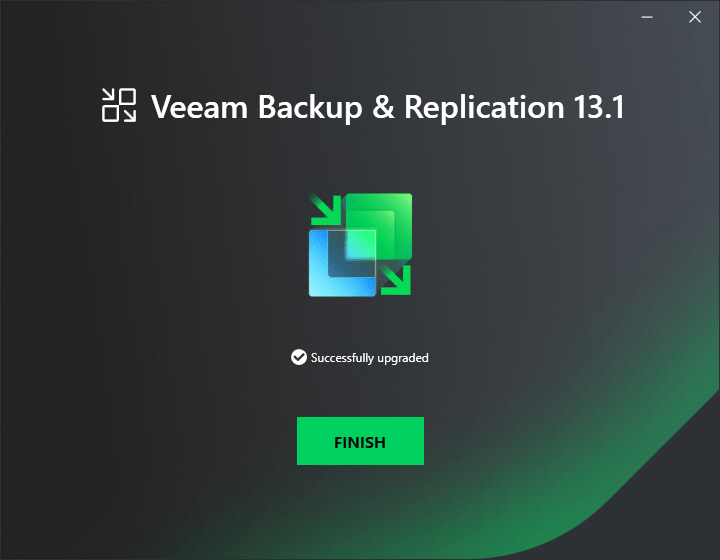
With the update complete, let’s log back in to confirm the updated build.

You will also find a new link underneath the build name for the Updater interface. Clicking the link will open up the Veeam Updater interface in a new browser tab where you can now manage your updates from going forward.
Wrap Up
If you’ve made the jump to the VSA prior to 13.1, you’ll immediately see the benefit of the new Veeam Updater experience. Reducing the complexities when it comes to performing upgrades is a welcome quality of life improvement that I think many backup admins out there will be looking forward to.
While Veeam Updater is exclusive to the VSA for the move to 13.1, it’s great to see that Windows users won’t be left behind. Veeam Updater is coming to Windows in 13.1 as well, which means the days of juggling ISO downloads may finally be coming to an end.
What I’ve covered here barely scratches the surface of what VDP 13.1 brings to the table. There’s so much more still to unpack, so stay tuned – there’ll be more content on the way soon.


Leave a Reply