
There’s no doubt that we all strive to ensure backups run successfully and error free but in reality this is not always the case, especially in large, complex environments that constantly change. It’s a well known fact that troubleshooting is part and parcel of working with any IT system, with backups being no exception.
But in amongst the frantic clicking of mice and keyboards, what really goes on behind the scenes? Let’s paint a picture:
A day in the life of an IT admin
Armed with your morning coffee, you begin your day like any other, starting out by checking the status of last nights backups. However today is unlike other days and your dashboard has taken on a different look greeting you with an uncharacteristic shade of red, peppered with errors. The troubleshooting process begins but try as you might, those error messages just don’t provide enough context – you need more information.
Knowing the inevitable can be put off no more, it’s time to break open the logs and see how far the rabbit hole really goes…

Next you log onto the backup server and turn to your most trusted steed – Notepad.
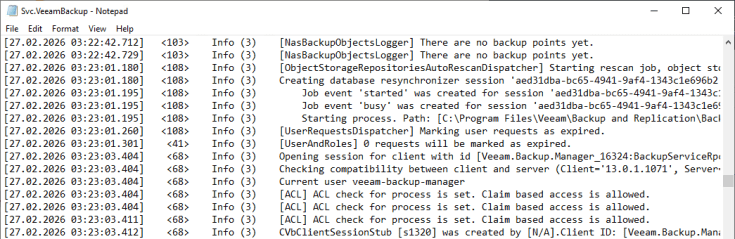
As the hours tick by your other work gets pushed to the back of the queue as you continue scrolling through walls of black and white text, with that feeling you’ve been transported into the Matrix.
Raising the bar with Sublime Text
There’s no doubting Notepad will get the job done in a pinch but ultimately, it was never designed to be more than a no frills text editor.
Nowadays it’s common for text editors to contain the usual lineup of features such as source‑code editing, syntax highlighting and plugin support. While Sublime Text has all those things, it also has an ace up it’s sleeve that makes working with Veeam logs a much less daunting task.
Install & Configure
Installing Sublime Text on Windows is straightforward – simply head over to https://www.sublimetext.com and click the DOWNLOAD FOR WINDOWS button.
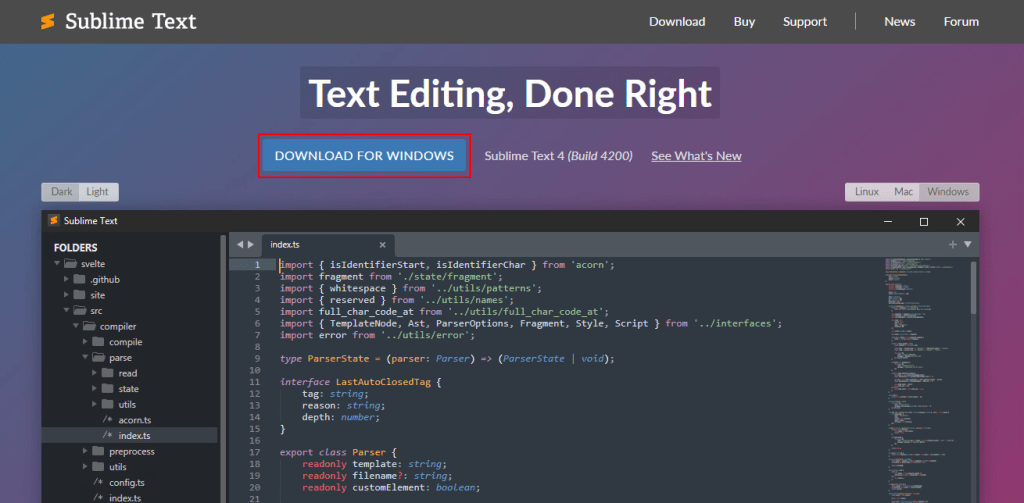
Now open the executable file and run through the setup wizard to complete the installation.
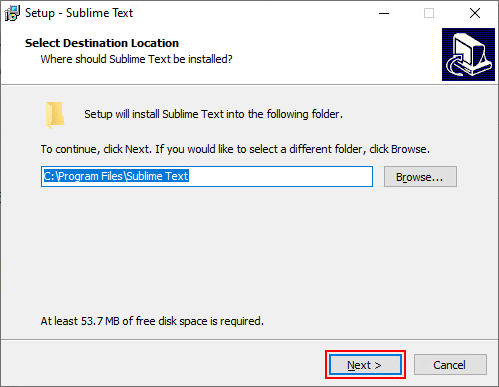
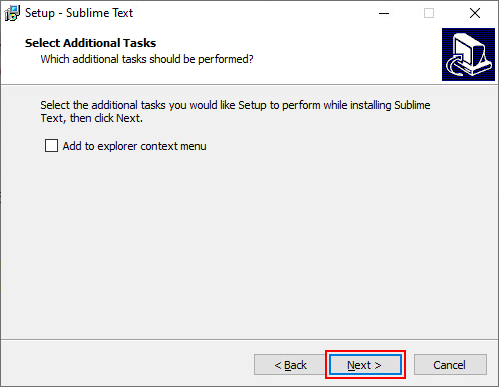
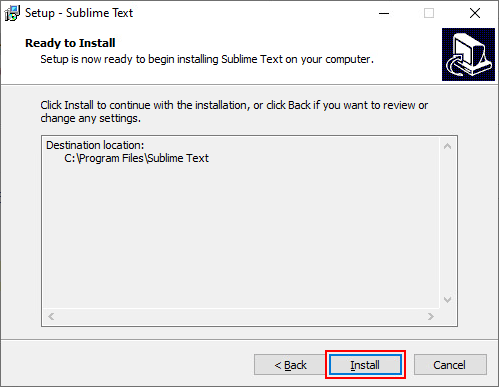
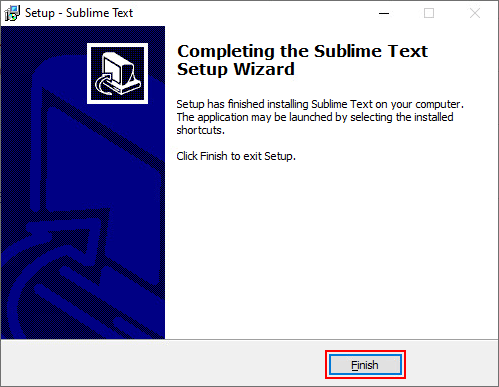
Next we’ll open the application and add the location for the Veeam logs by going to File > Open Folder and selecting the location of your log files.
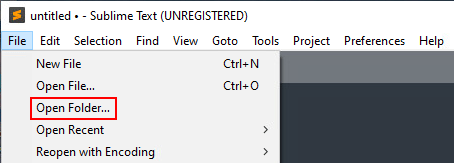
If you installed Sublime Text on your backup server the logs path is typically C:\ProgramData\Veeam\Backup
Once added, all logs files including those in subfolders will appear in the file explorer window on the left.
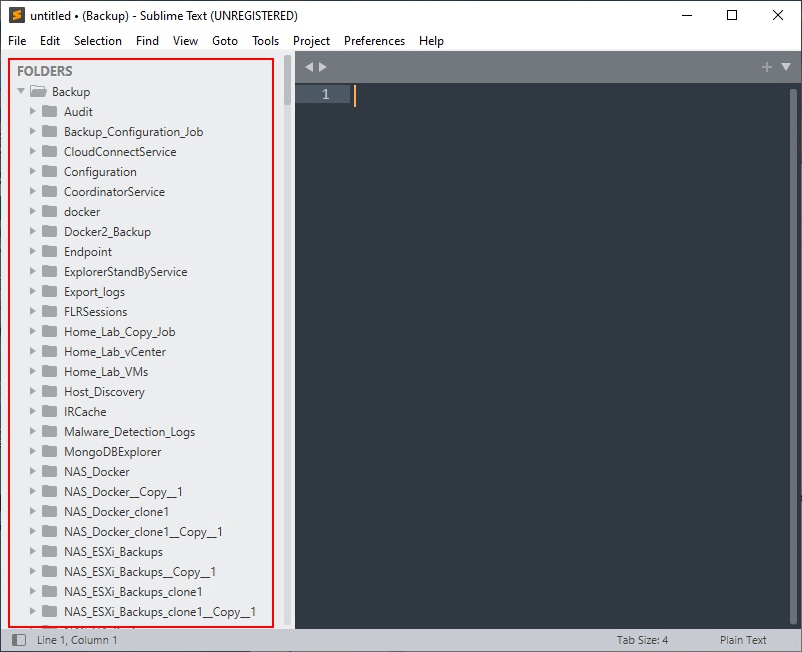
First let’s select one of the Veeam logs from the list just to see what the file looks like out of the box.
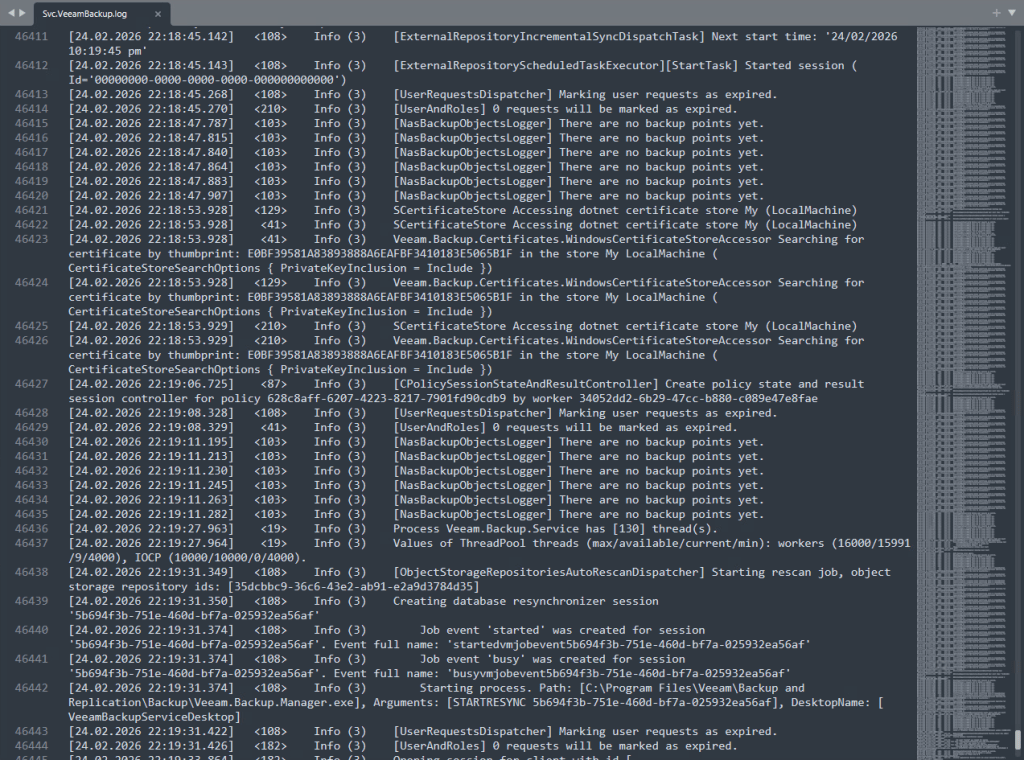
Nothing spectacular going on here so far – but that’s about to change by installing the Veeam Logs Helper package.
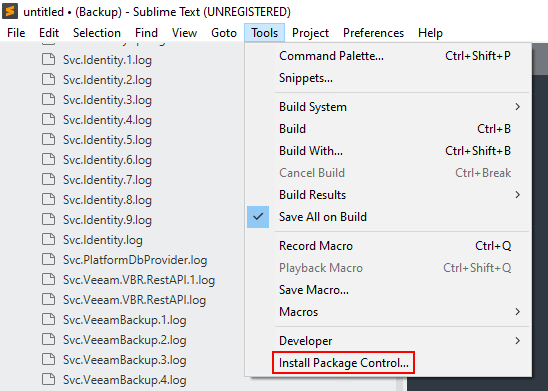
Under Tools click Install Package Control
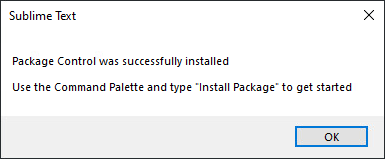
Head back to Tools once again and this time click Command Palette
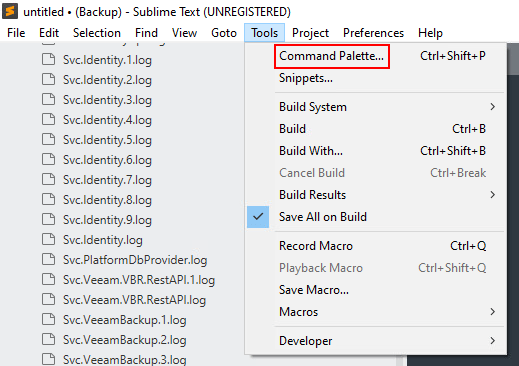
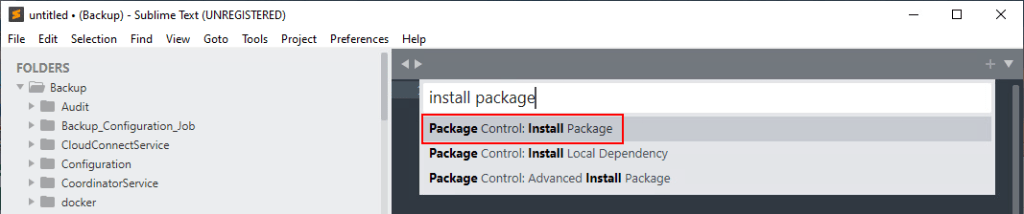
In the popup window that appears type install package then select the Package Control: Install Package option
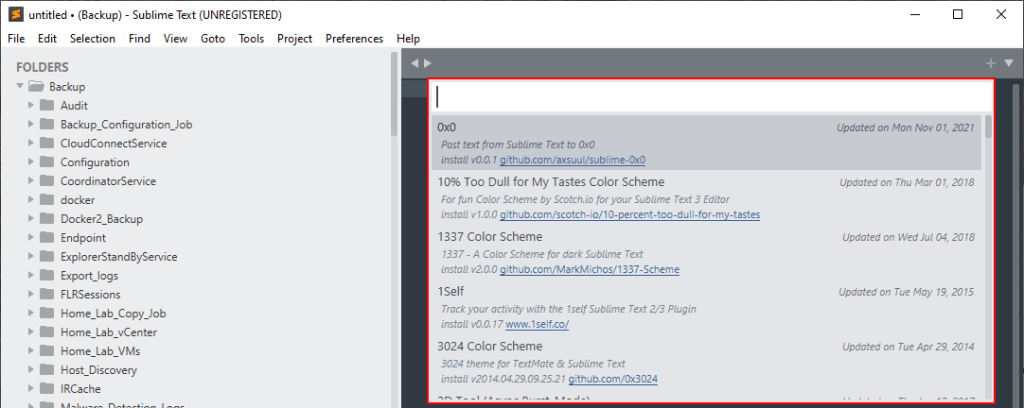
This will open up a new search box containing a list of all available packages.
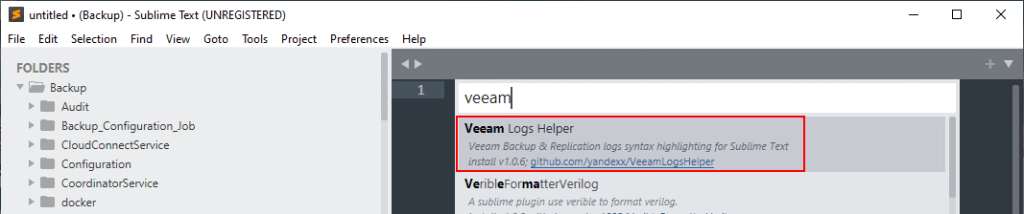
Type veeam into text field and select the Veeam Logs Helper package.
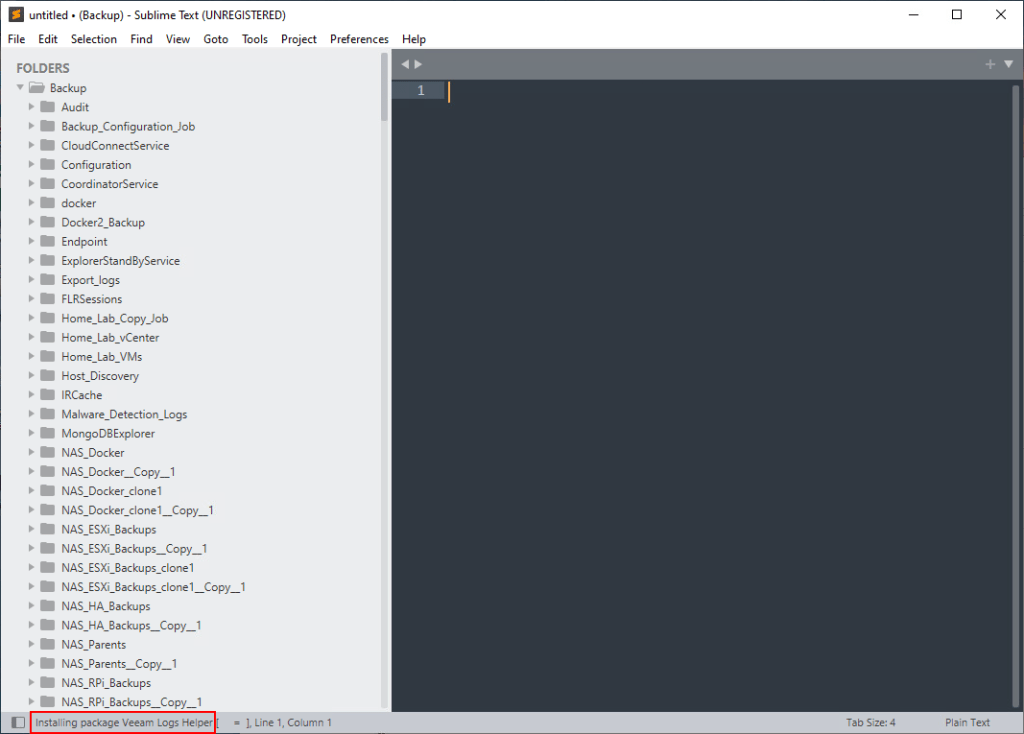
At this point it might seem like nothing happened but if you’re quick, you’ll be able to see the install progress in the status bar, down in the bottom left corner of the window.
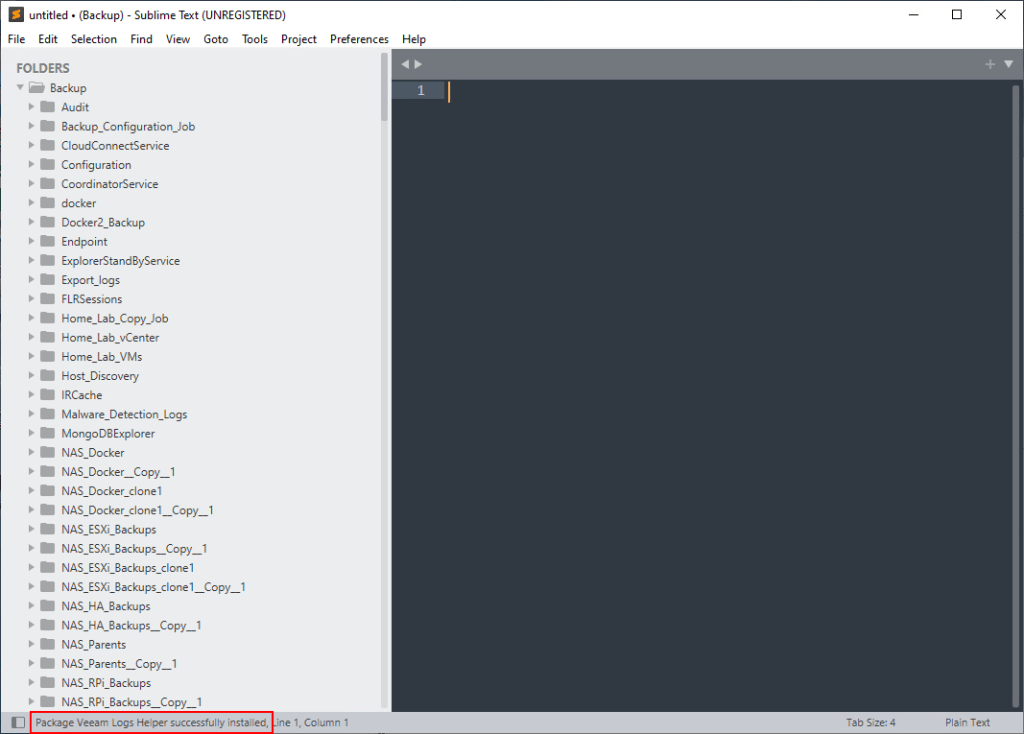
With the Veeam package now installed, you can clearly see some differences from before with timestamps and Veeam specific key words highlighted in different colours.
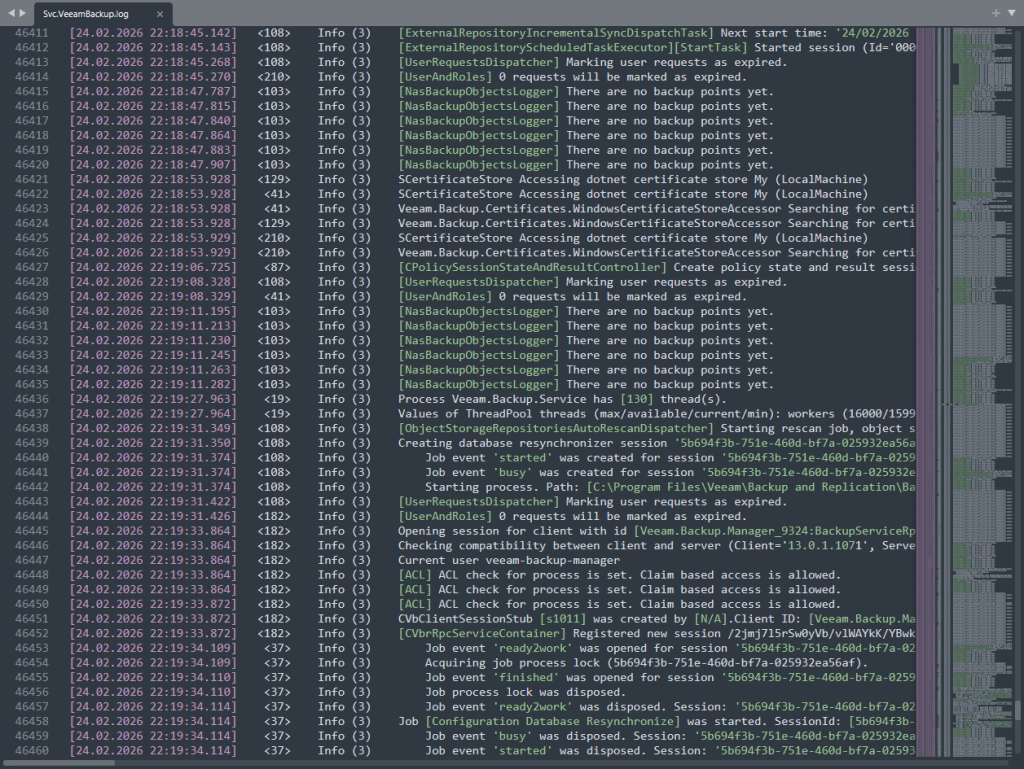
Finding errors the easy way
Let’s take a real world log file as an example and check out a few ways to look for errors with Sublime Text.
The first and perhaps the quickest option is to perform a classic keyword search, jumping through the log file with each successful match. This method is very effective and a go to for many of us however when dealing with larger files spanning several thousand lines, it can make you feel a bit lost as it bounces around the file.
That brings us onto option 2 where you can make use of the mini map (located on the right side) which provides an insight into what the upcoming lines of the file contain from a birds eye view. As we start scrolling through the file, the mini map dynamically updates and shows a group of lines highlighted in red as shown below.
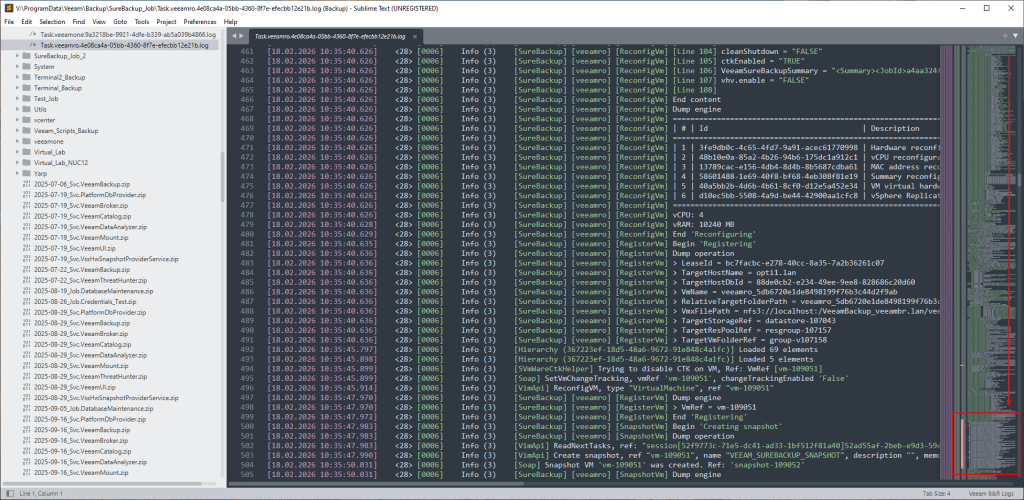
Clicking that area on the mini map takes us straight to that part of the file where we can easily identify the error messages.
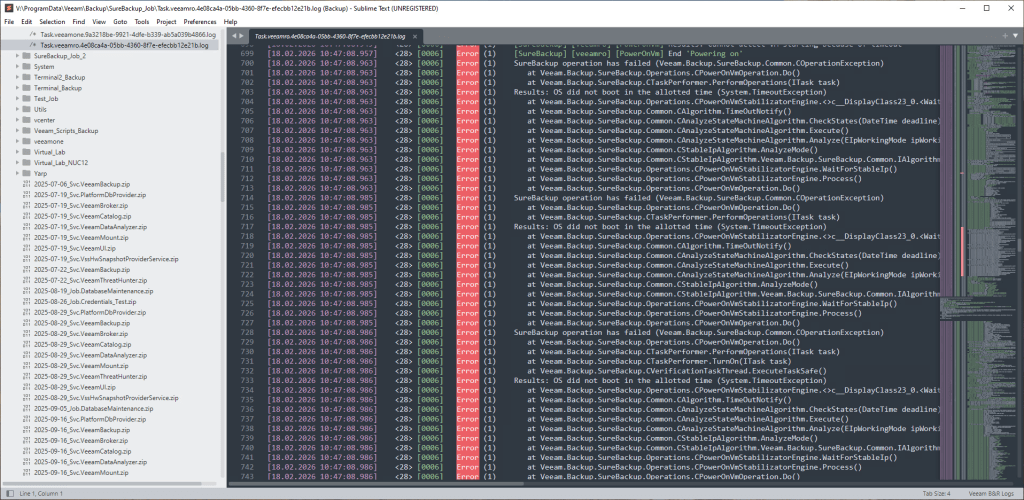
Sublime Text also supports tabbing by simply double clicking additional log files – perfect for those more complicated troubleshooting tasks!

Wrap Up
Despite being around the Veeam ecosystem for many years, Sublime Text has somehow snuck under the radar until very recently. It’s amazing I haven’t come across it in all this time, especially since the Veeam Log Helper package was first released back in 2017!
When it comes to performing Veeam troubleshooting tasks, Sublime Text really is a game changer. Whether you’re a seasoned pro or an occasional dabbler in this space, Sublime Text helps bridge the gap, providing a clean, clear interface that provides a more inviting experience.
It goes without saying that engaging the assistance of the Veeam Support team is always encouraged since they are experts in the field. However having the ability to highlight Veeam specific syntax goes a long way in removing the intimidation factor when it comes to troubleshooting and is a great way to build confidence and skills in this area.
So next time you’re staring down the barrel of a seemingly endless log file, give Sublime Text a go and you might be surprised to find the needle in that haystack isn’t as hard to find as you once thought.
 benharmer.blog
Leave a comment