With 2026 already in full swing, I figured it’s about time I looked into the process for migrating a VBR server over to the new VSA. Conveniently, I already have a V12 Veeam environment running in my home lab, so I thought, let’s use it as a guinea pig!
In this two-part series, I’ll be taking a look at what’s involved in migrating to the new Veeam Software Appliance.
In the first part, we’ll focus on upgrading the existing V12 Veeam environment to V13 on Windows, where we’ll look at planning considerations as well as a step by step walkthrough of the upgrade process.
Later in part 2, we will look at the migration path from a V13 Windows instance over to the VSA.
Note that migrating to the VSA from an existing VBR instance currently requires assistance from Veeam Support – more below
In-Place Upgrade – VBR to V13 on Windows
Unfortunately there is currently no direct migration path from V12 to the VSA. Whether this will change in the future is yet to be seen but for now, let’s jump into the current supported process and upgrade to V13 on Windows.
Pre-requisites
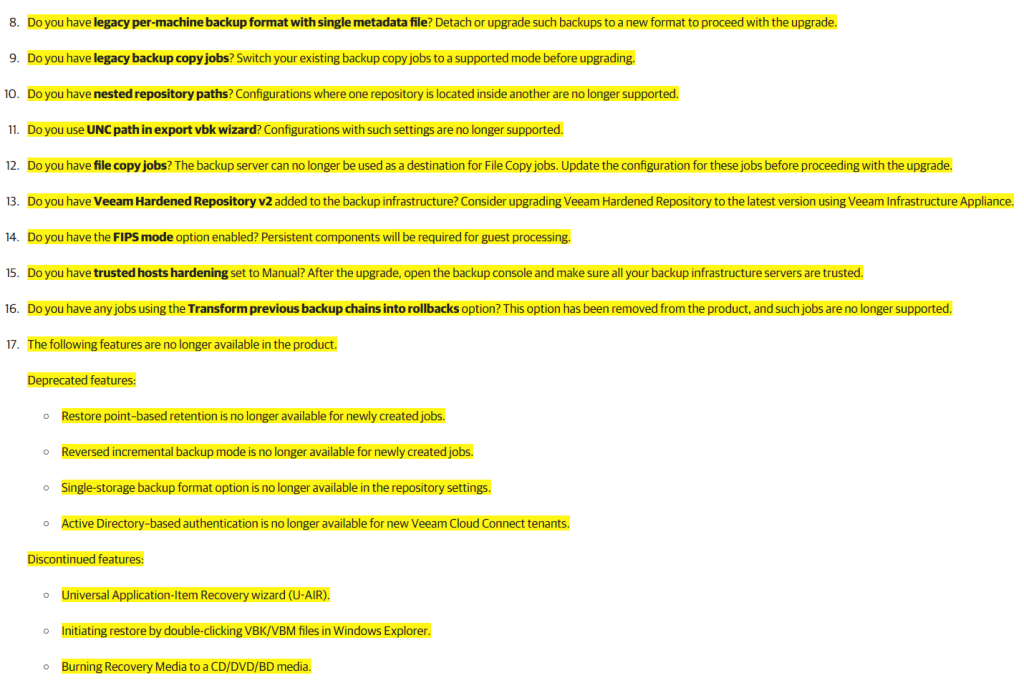
The upgrade checklist below sets out all of the requirements that should be in place prior to upgrading the VBR server. While the list may look long and tedious, it’s definately worth spending the time reading through it carefully to ensure the upgrade process runs as smoothly as possible.
https://helpcenter.veeam.com/docs/vbr/userguide/upgrade_vbr_byb.html?ver=13
I wanted to call out the list of deprecated and discontinued features in V13 in particular. Make sure you plan for these accordingly.
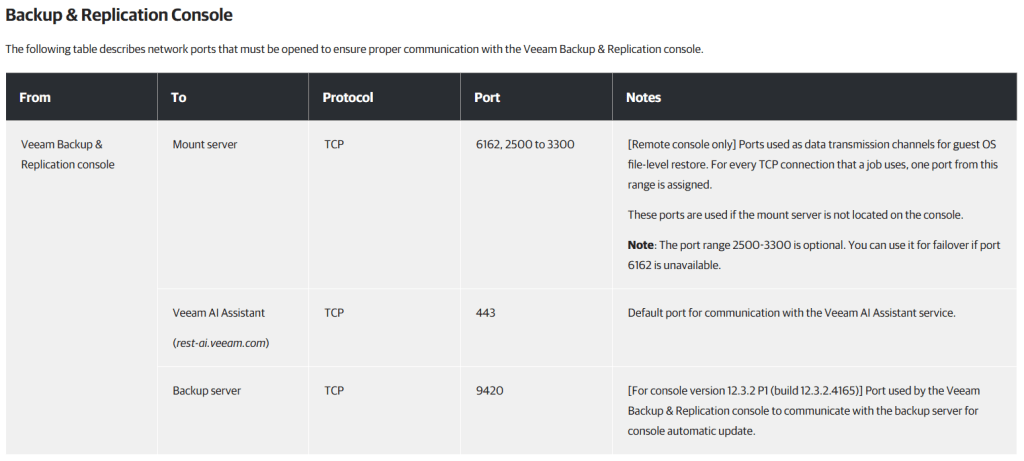
Another thing I noticed while reading the pre-requisites is a change to the ports used by the console. TCP port 9392 is missing from the table below which has been used for communication between the console and the VBR server for many years. Starting from V13, connections from the console and the web client to the backup server use TCP 443.
In-Place Upgrade – Veeam ONE V12.3 to V13.0.1
Part of the Upgrade Checklist requires any Veeam ONE and Veeam Enterprise Manager instances to be upgraded before the VBR server. Since my lab is running Veeam ONE, I thought I’d include the upgrade process for that too.
It’s worth checking what your upgrade path will look like beforehand to make sure the version you are running can upgrade directly to V13. Some older versions of the software do require a couple of hops to reach the latest version.
The upgrade process was very straightforward with my all-in-one deployment.
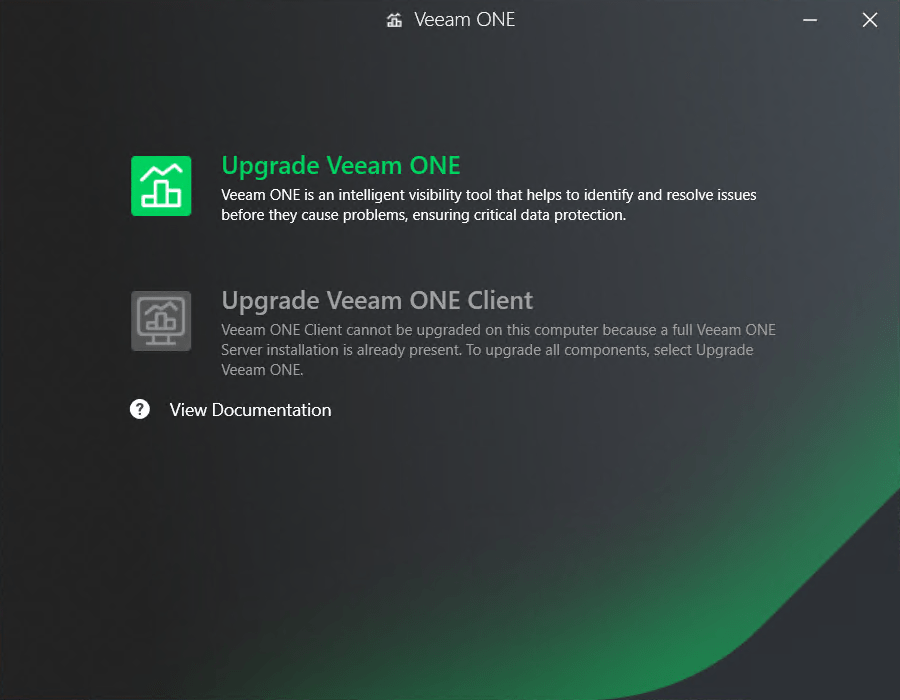
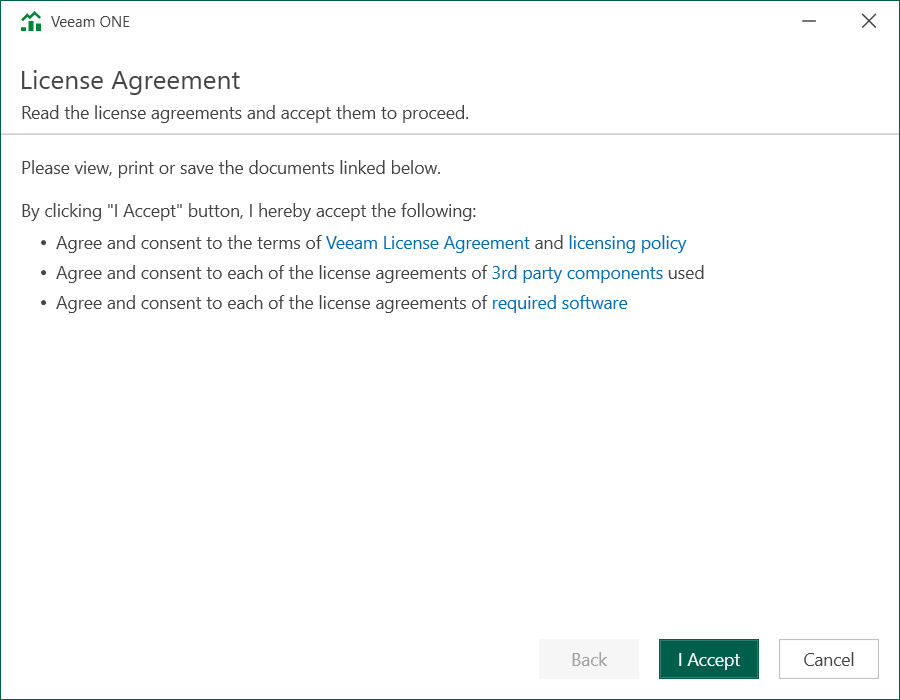
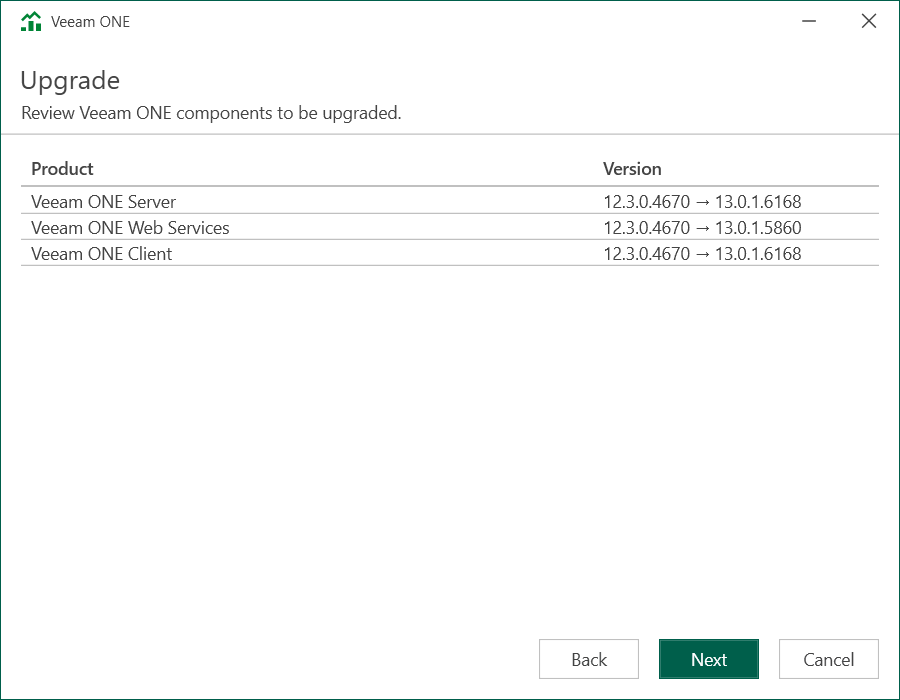
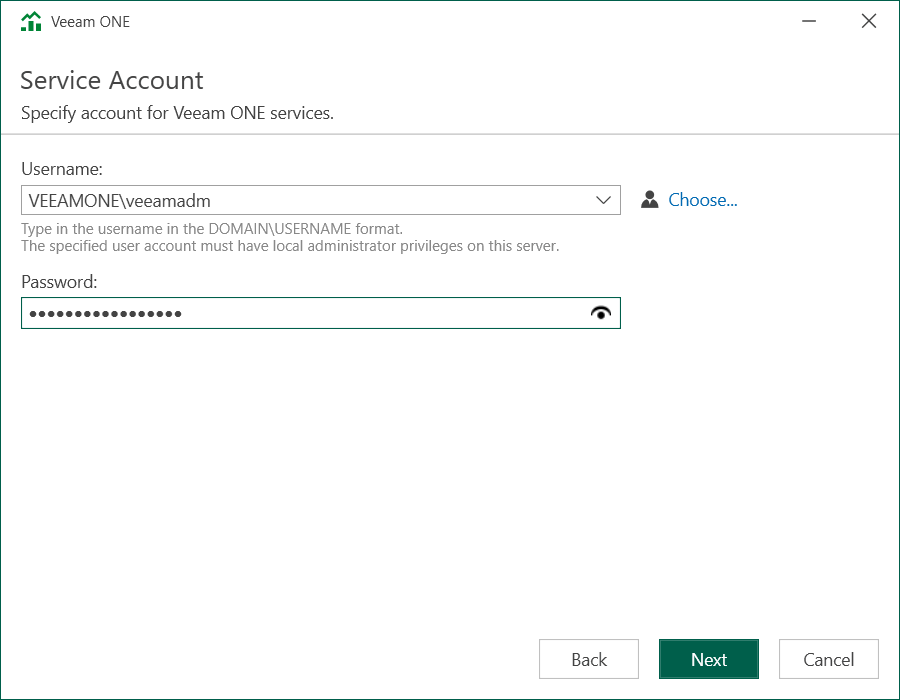
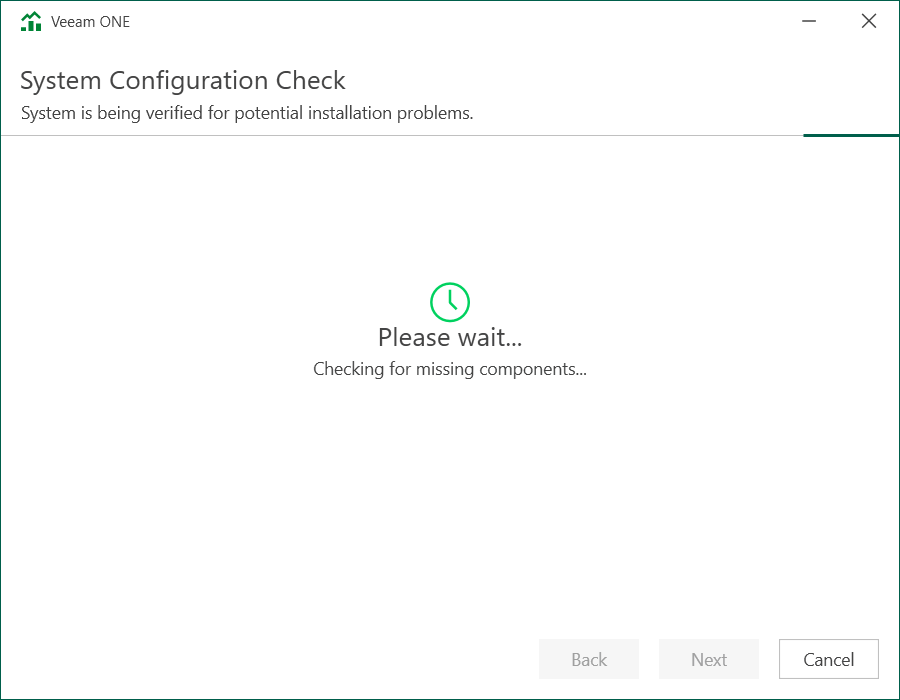
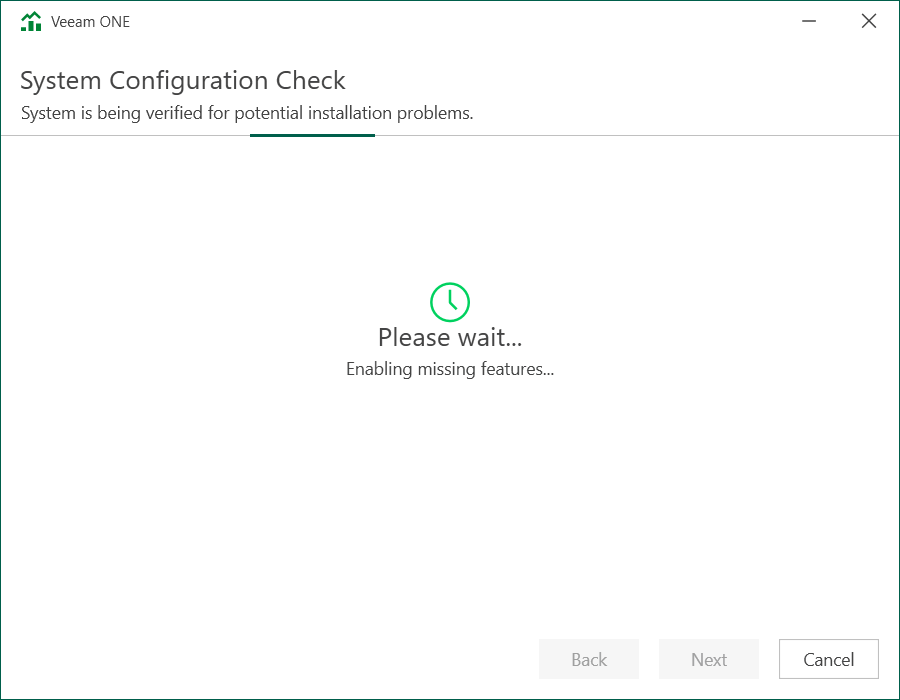
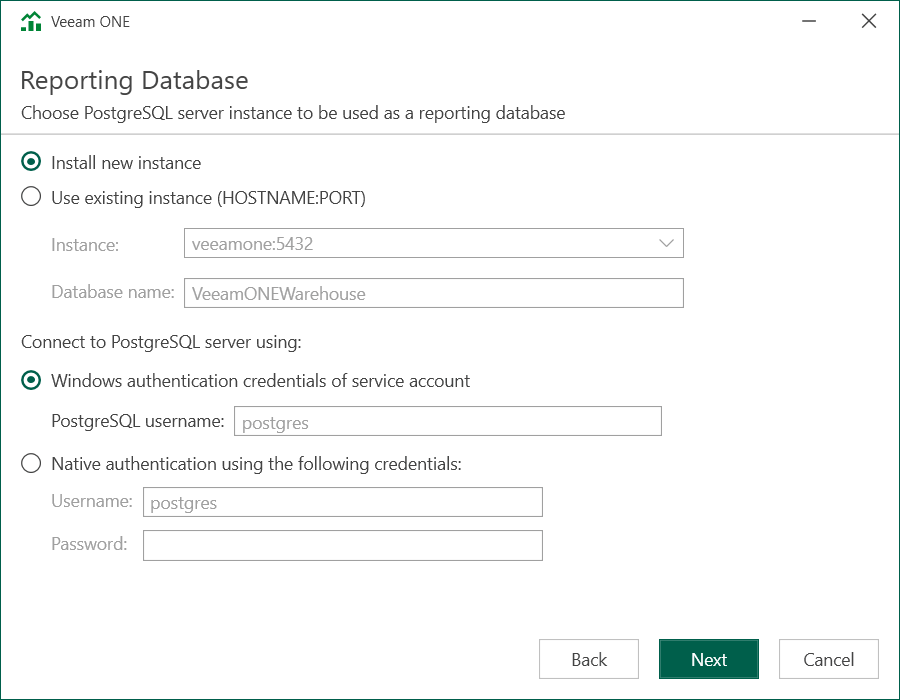
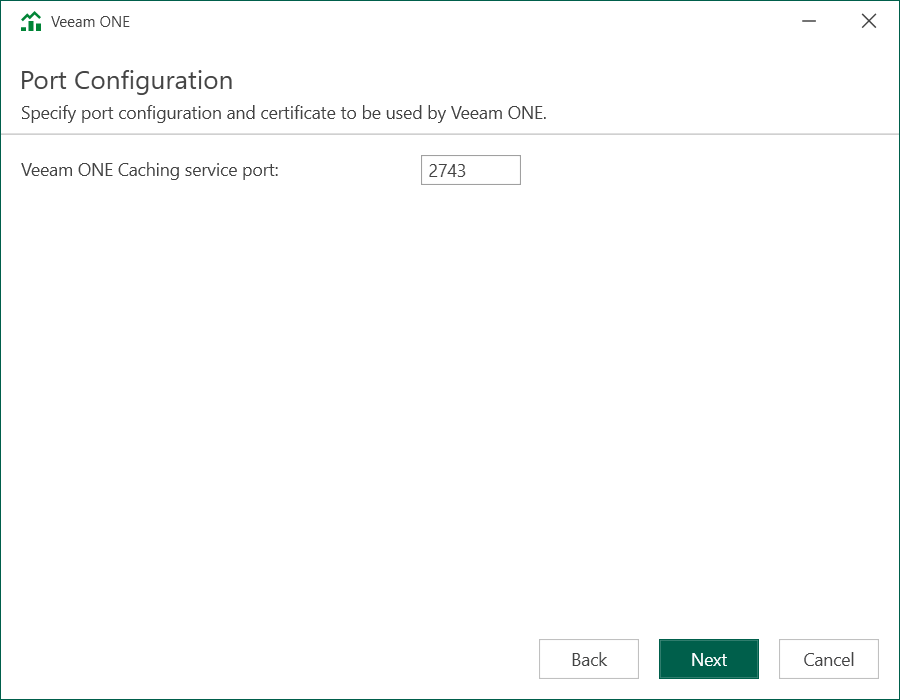
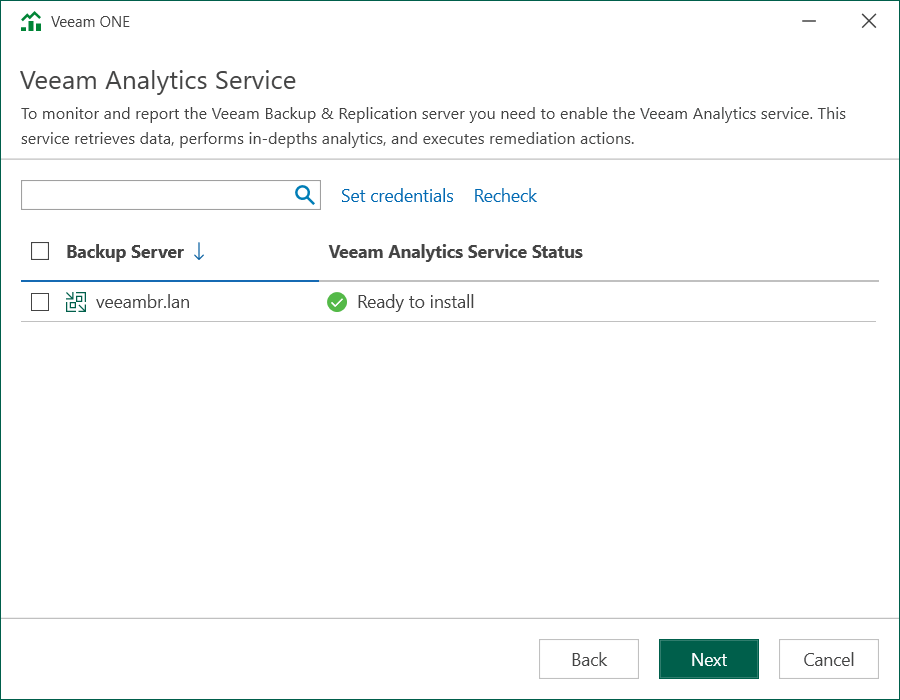
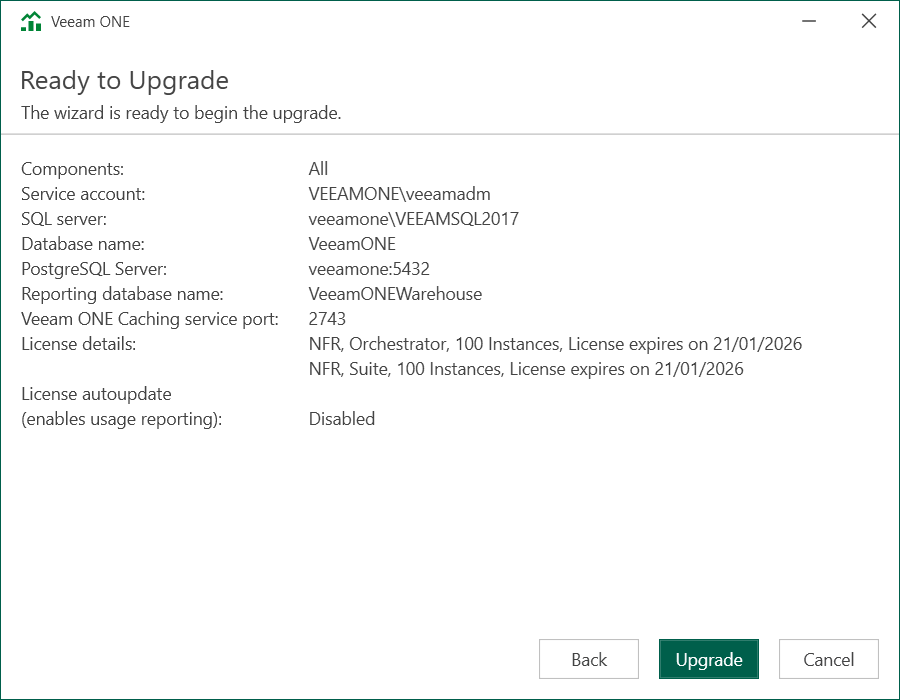
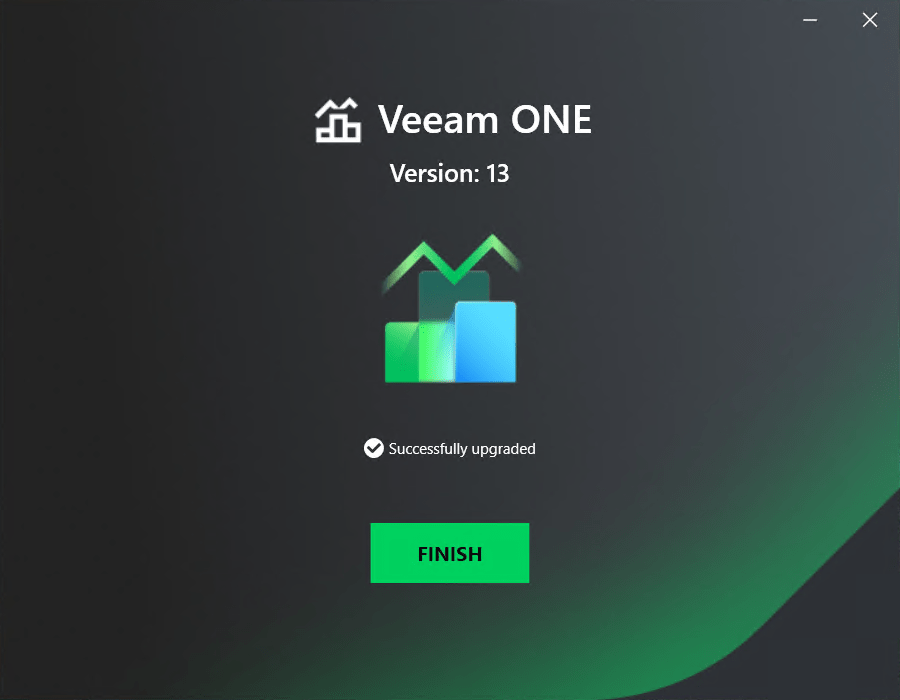
I wanted to highlight the Reporting Database step of the wizard in particular, which will be running on PostgreSQL in V13:
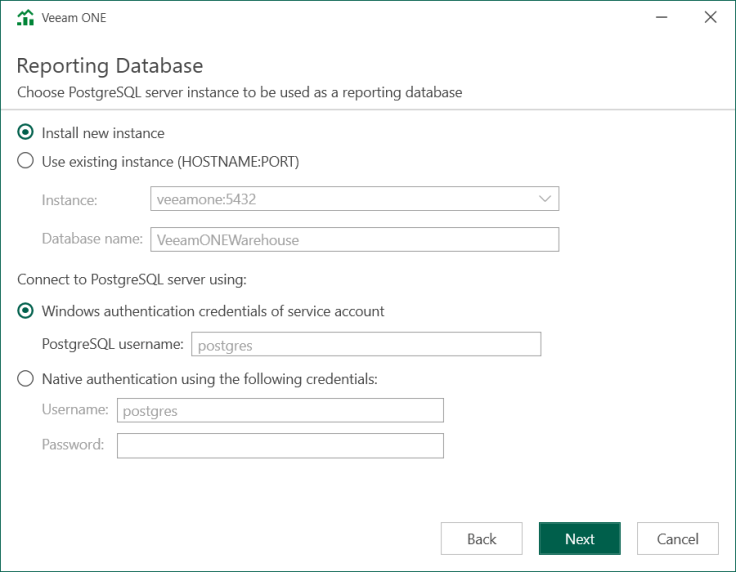
The move to a PostgreSQL powered database enables faster report generation and reduces the dependancy on Microsoft SQL Server. While MS SQL is still required by some of the other Veeam ONE components, this is a move in the right direction – hopefully we’ll see Veeam ONE running on Linux in the near future!
Upgrade Process
Download the latest V13 ISO and mount it to your VBR server. Again, it’s worth checking that your current version supports a direct upgrade to V13.
Next we need to ensure the VBR server is in an idle like state where the following should be true:
- Latest run of all existing jobs has completed successfully
- No running jobs, restore sessions, Instant Recovery sessions, and SureBackup jobs
- Periodic and backup copy jobs are disabled temporarily to prevent them from starting during the upgrade
- CDP policies disabled
- No active tasks from standalone (unmounted) agents
- No active Veeam Recovery Orchestrator tasks
Next run a configuration backup – it might sound obvious, but it’s the best way to ensure you can restore to a working setup if the upgrade doesn’t go as planned.
Now let’s step through the upgrade wizard.
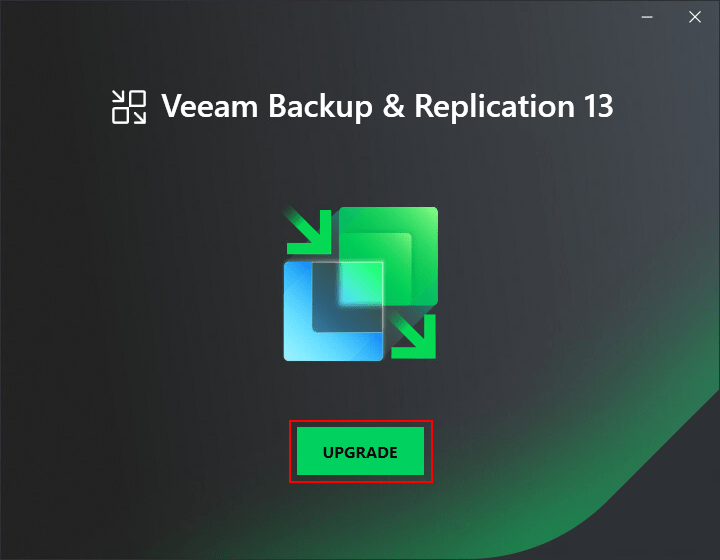
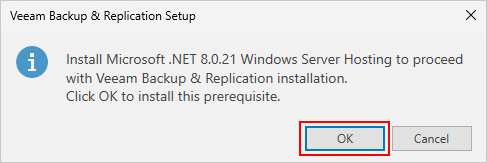
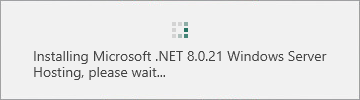
In my lab environment, the VBR server required a .NET upgrade before progressing.
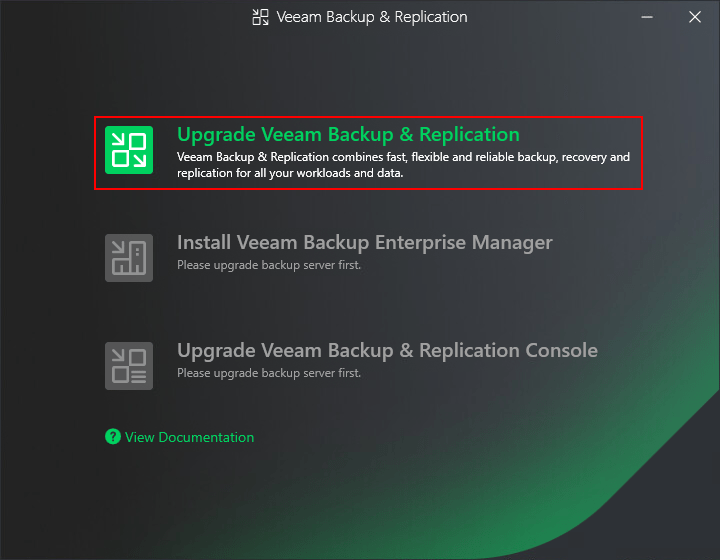
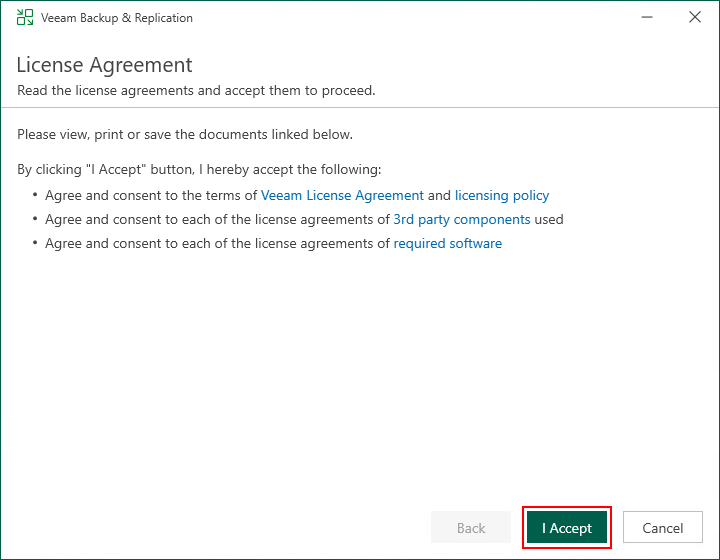
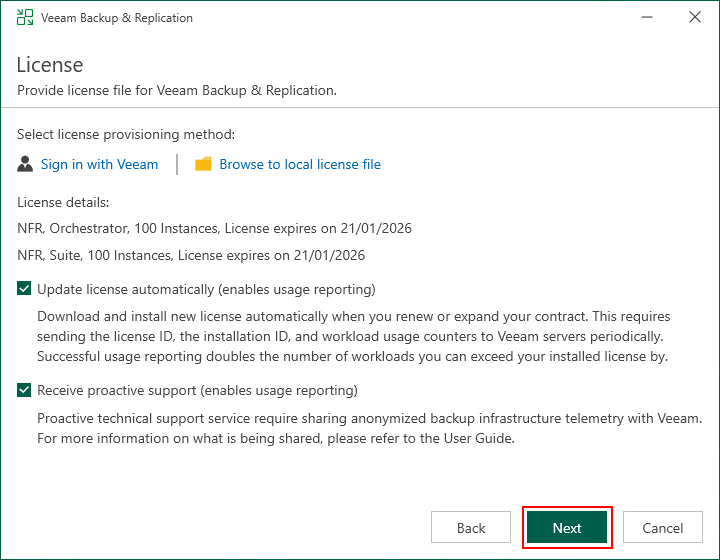
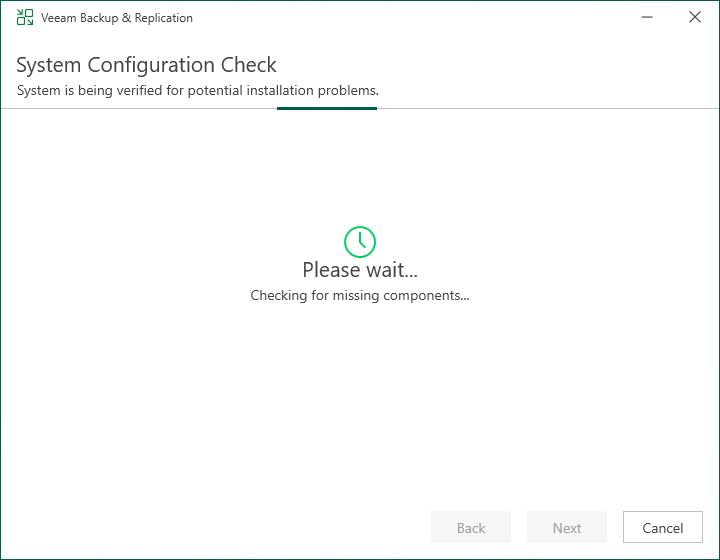
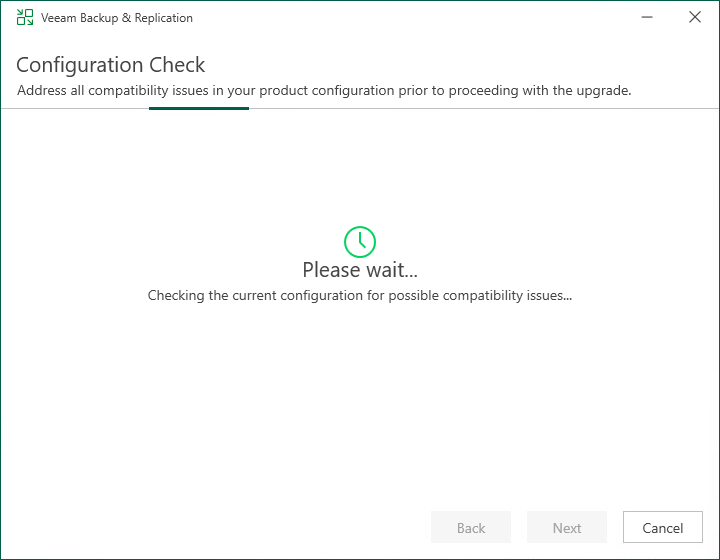
After the Configuration Check is complete, you may find some compatibility issues are found:
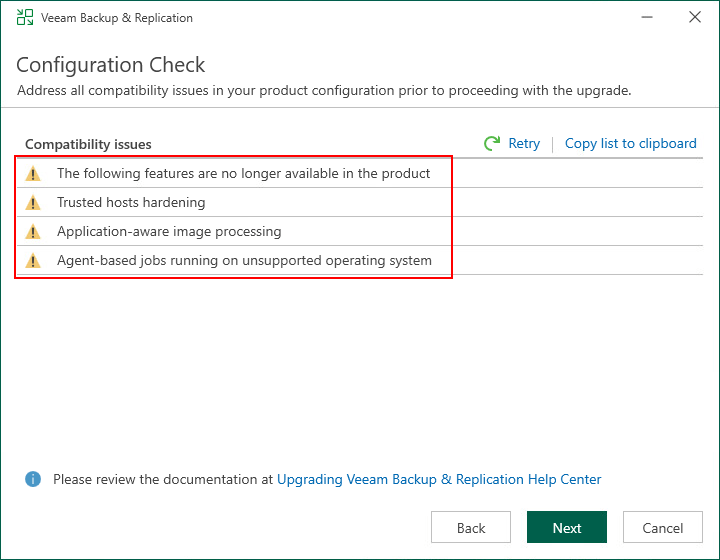
If warning or information messages are shown, hover the mouse over each to see details about the message. While it is possible to continue the upgrade and address the issues later, Veeam recommends these are resolved prior to upgrading to prevent it potentially leading to a more serious problem later on.
If any error messages are shown here, the upgrade wizard will not allow you to continue until they are resolved.
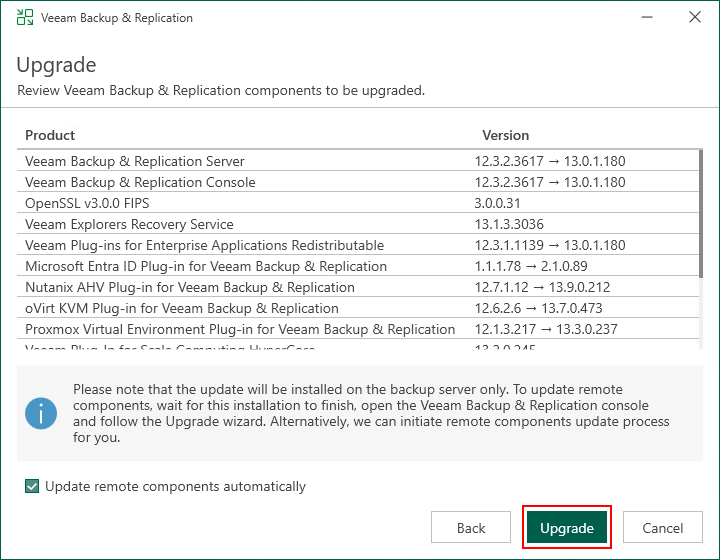
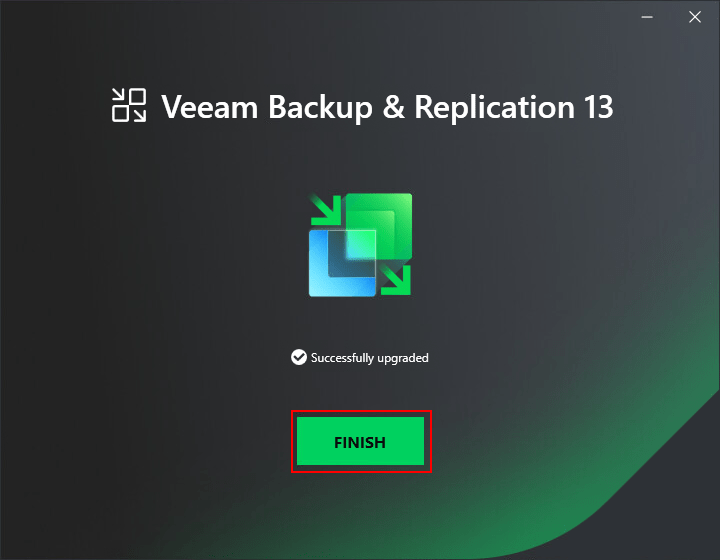
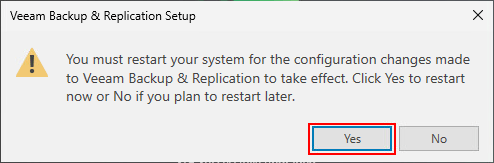
Once the upgrade is complete, click Finish and restart the system if required for changes to take effect.
If you didn’t select Update remote components automatically during the upgrade wizard, a window will popup next time you log into the console requesting to upgrade the remote Veeam components. You should also enable any scheduled jobs that were disabled before the upgrade.
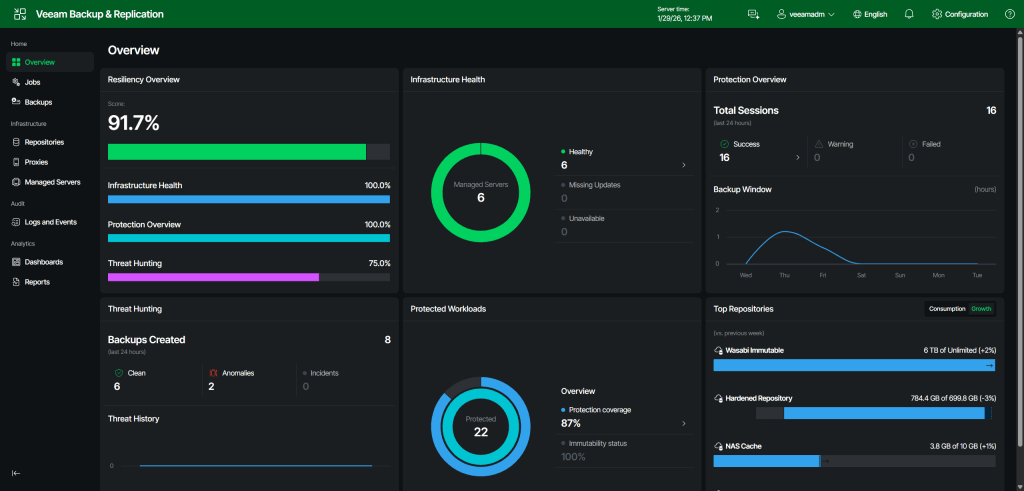
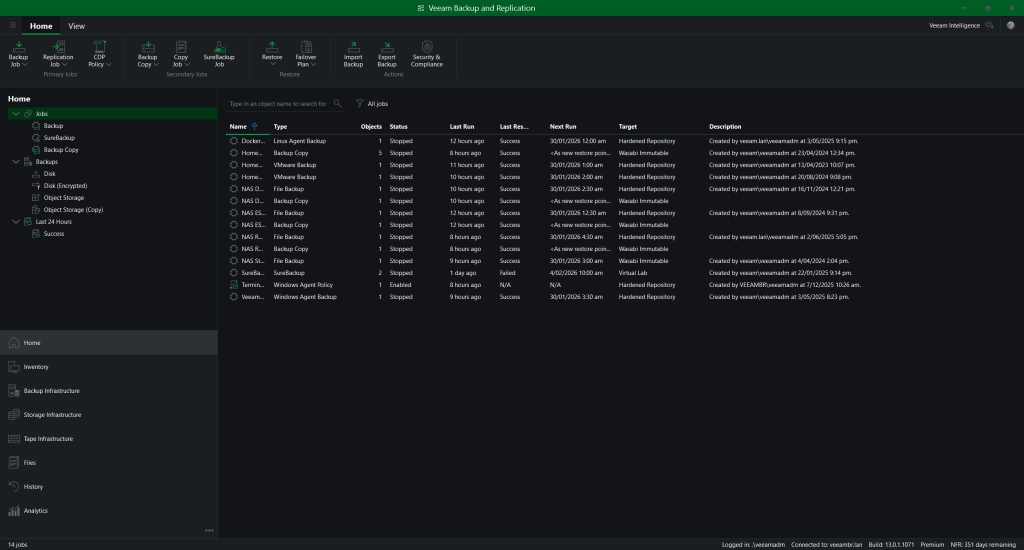
Before we finish up, no upgrade can be complete without turning on dark mode 😎
Wrap Up
This marks the half way point in this 2 part series, with the VBR now running V13 on Windows. Stay tuned for part 2 where we will perform the migration from Windows to the VSA on Linux.
At this stage, the VSA conversion process is not readily available and involves a sign up process with a queueing system.
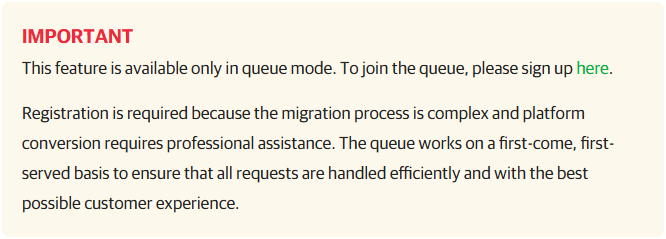
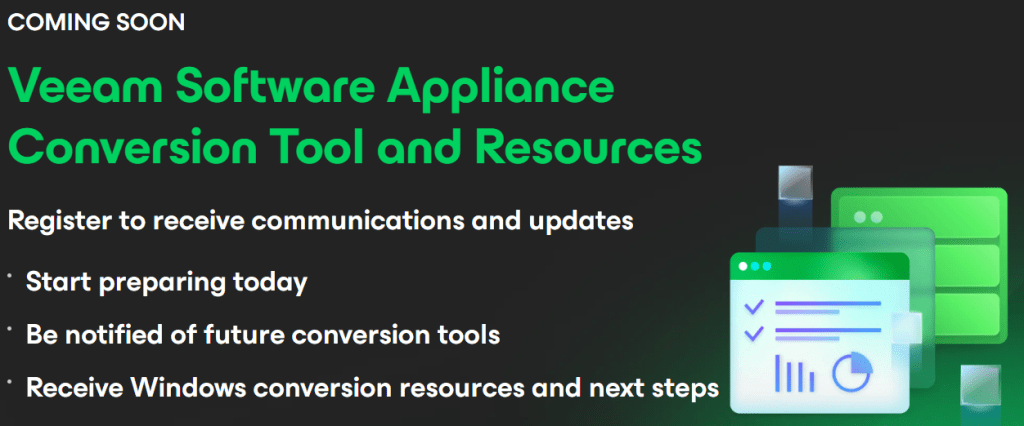
The good news is that a VSA Conversation Tool is in the works which will hopefully help to streamline the process and take away the current complexities.
 benharmer.blog
Leave a comment