
Today I’ll be discussing the benefits of Veeam ONE with a focus on notifications using alarms. If you’re a Veeam ONE user you will already be aware how useful alarms can be. Whether you’re monitoring your backup infrastructure or virtual infrastructure (hopefully both!) there is a huge selection of alarms available to you out of the box. Furthermore, alarms are fully customisable giving you the flexibility to tweak them to your liking or even create your own.
There are a few features in particular that stand out to me with alarms:
Notifications
Alarm notifications can be configured in a number of ways and are sent when an alarm with the corresponding severity is triggered or changes status. Options for notifications include:
- Send email to a default group
- Send email notification
- Send SNMP trap
- Run script
- Create ServiceNow incident
- Send Syslog message
The range of notification options gives you an idea of just how many possibilities they can provide. For example, you could run a script which automates the creation of a support ticket for your help desk to action.
Actions
Actions work in a similar way to notifications but with a different use case. Actions are designed to be used for troubleshooting tasks using custom scripts. This applies to information, warning and error severity types only. Again, the use cases here are endless with the ability to provide a script using the language of your choosing.
Running Scripts
Let’s take a closer look at how scripts can be used with Veeam ONE alarms to send notifications.
Spoiler alert – it’s easier than you might think!
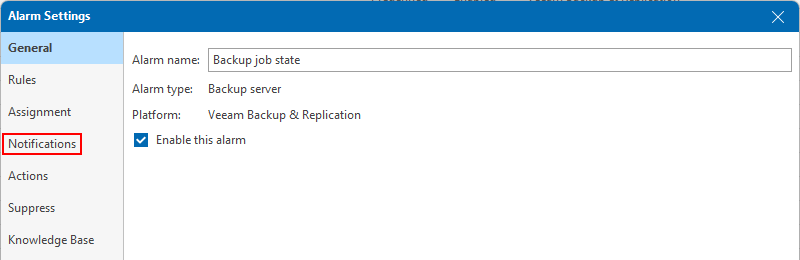
First let’s have a look at where to configure these settings for an alarm. In this example I’m using the Backup job state alarm.
Under Alarm Management edit the alarm and click on the Notifications tab on the left:
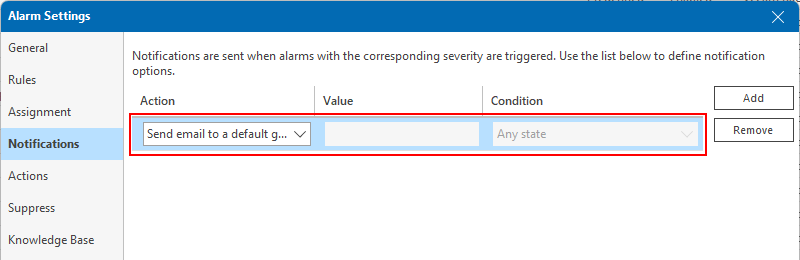
Under Notifications the default action is typically to send an email to the default group (as defined under Server Settings > Notification Policy). This can be removed if not deemed necessary using the button on the right.
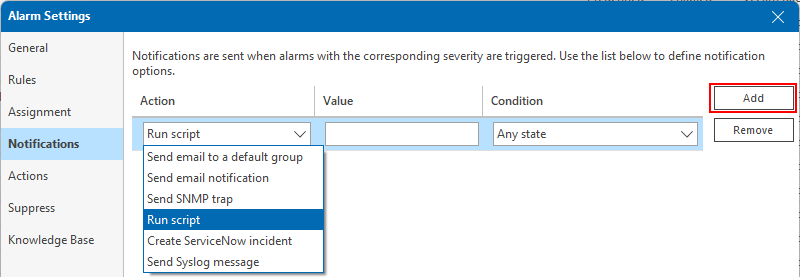
A new entry can be created using the Add button then changing the Action column to Run script. It’s worth noting that multiple entries can be added here if required.
Next we need to look at how to pass information about the triggered alarm into the script itself. This can be achieved by passing parameters as arguments to your script.
The different parameters that the alarm accepts are outlined in this Veeam KB: https://www.veeam.com/kb1552
- %1 – alarm name
- %2 – affected node name
- %3 – alarm summary
- %4 – date and time of alarm trigger
- %5 – alarm status
- %6 – previous alarm status
- %7 – ID assigned to a combination of an affected node and an alarm
- %8 – type of a child alarm object.
It’s possible to pass some or all of these into the script. I’m passing all the parameters into a PowerShell script in the example below to show what information is returned by each of them.
powershell.exe C:\scripts\test_alarm.ps1 '%1' '%2' '%3' '%4' '%5' '%6' '%7' '%8'This needs to be entered into the Value column of the alarm.
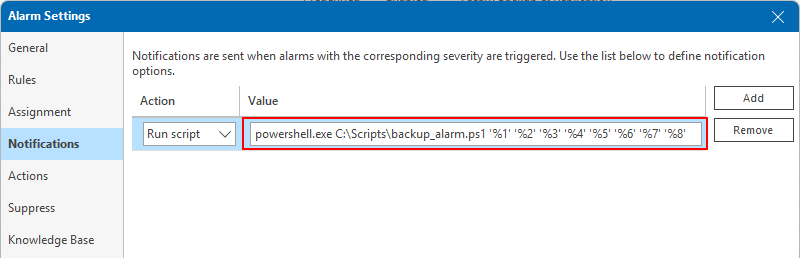
The Condition column is just out of view in the above image and is set to Any state.
Now let’s have a look at the script itself:
#define passed args
$alarmName = $args[0]
$alarmNodeName = $args[1]
$alarmSummary = $args[2]
$datetime = $args[3]
$alarmStatus = $args[4]
$alarmPrevStatus = $args[5]
$idAssigned = $args[6]
$alarmChildObject = $args[7]

#output to text file
"alarm name=$alarmName`naffected node name=$alarmNodeName`nalarm summary=$alarmSummary`ndate and time of alarm trigger=$datetime`nalarm status=$alarmStatus`nprevious alarm status=$alarmPrevStatus`nid assigned to a combination of an affected node and an alarm=$idAssigned`ntype of a child alarm object=$alarmChildObject" | Out-File C:\Scripts\test_alarm.txt
This first section assigns each of the arguments we passed in to the script as a variable. Next, the variables are dumped into a text file for analysing.
All that’s left to do now is run a backup job. In this instance it completed with a failed status which triggers the alarm in Veeam ONE.
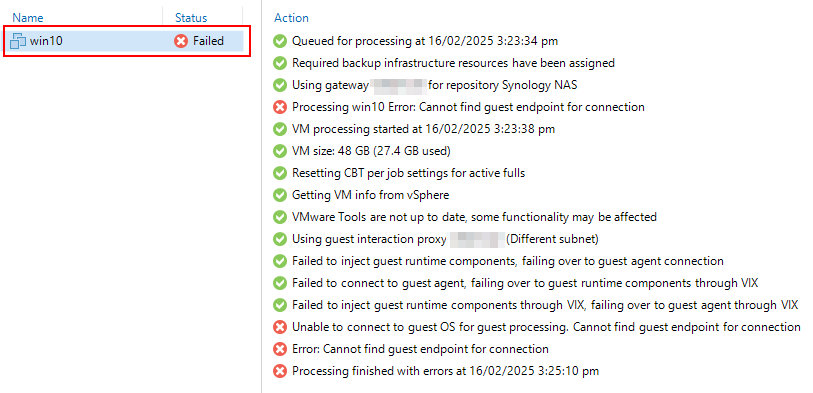
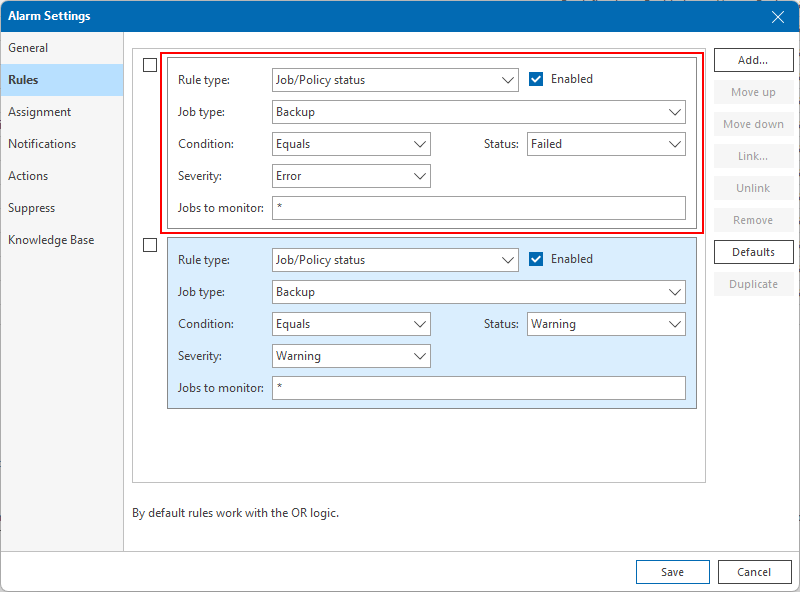
Let’s take a look at the text file that was created by the script.
alarm name=Backup job state
affected node name={vbr server name}
alarm summary=Job Backup Job 3 has ended with error	win10 - Processing win10 Error: Cannot find guest endpoint for connection	Unable to connect to guest OS for guest processing. Cannot find guest endpoint for connection	Error: Cannot find guest endpoint for connection	Processing finished with errors at 16/02/2025 3:25:10 pm
date and time of alarm trigger=16/02/2025 3:26:03 pm
alarm status=Error
previous alarm status=Error
id assigned to a combination of an affected node and an alarm=9
type of a child alarm object=Job Backup Job 3
As you can see there is some really useful information here that can be used for automation tasks through scripting.
Push Notifications
Now let’s move onto the good stuff and setup some push notifications. By using the same alarm in the example above, I wrote a simple script to send a notification to my phone via Pushover whenever the alarm is triggered or changes to a resolved status.
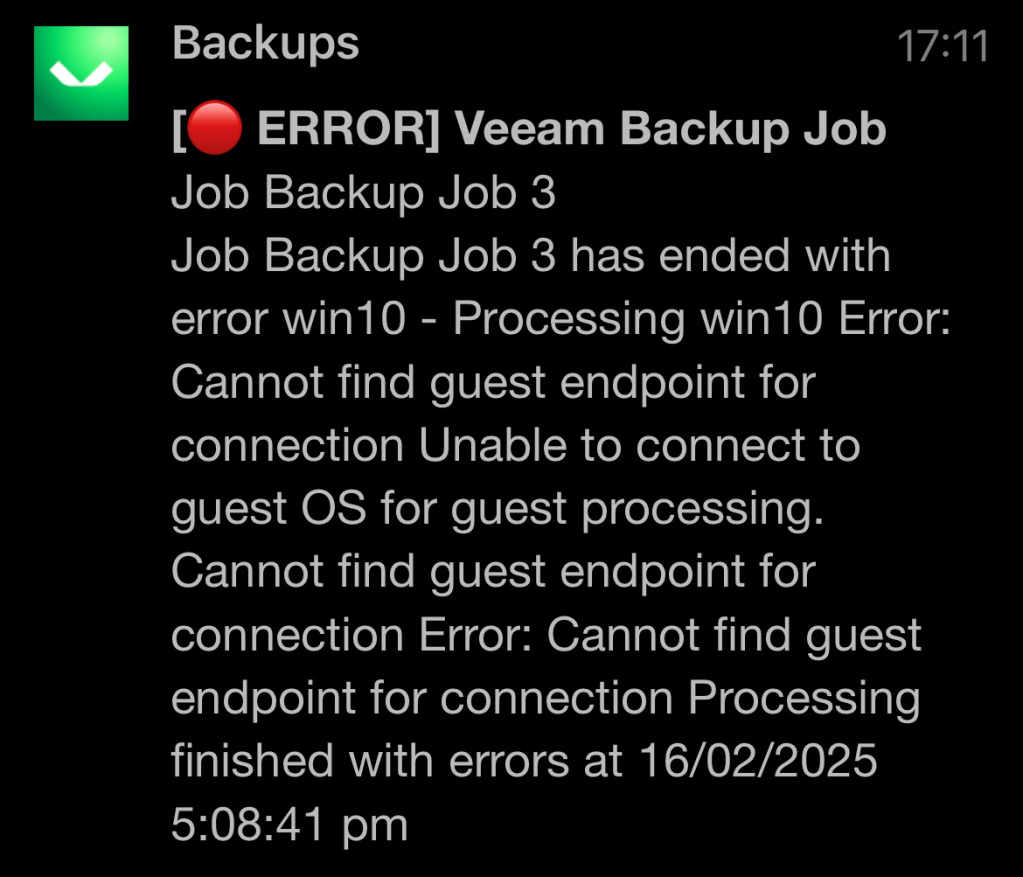
Follow the setup process below if you want to give it a try for yourself.
The first step is to sign up to setup a notification provider. In this example I’m using Pushover however in any provider should work here provided there is an API available for PowerShell to interact with.
Once logged in the first thing you will want to grab is your user key. This will be entered into the script later on.
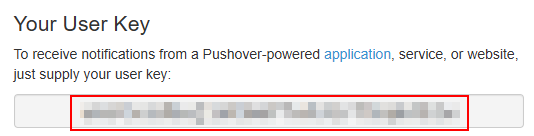
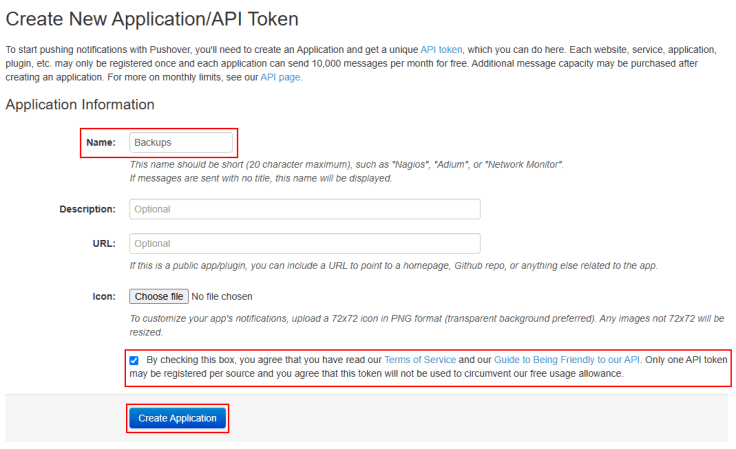
Next create an application.

Enter the name for your application and check the box to agree to the T&Cs then click Create Application.
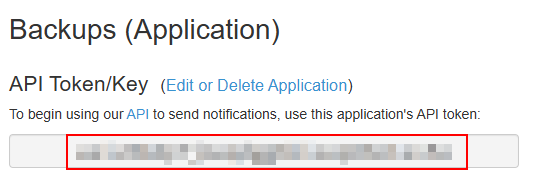
On the next page grab the API token. This will be needed for the script as well.
Using the same test_alarm.ps1 script from earlier I’ve used some conditions to execute code based on the status of the alarm.
#define passed args
$alarmName = $args[0]
$alarmNodeName = $args[1]
$alarmSummary = $args[2]
$datetime = $args[3]
$alarmStatus = $args[4]
$alarmPrevStatus = $args[5]
$idAssigned = $args[6]
$alarmChildObject = $args[7]

#output to text file
"alarm name=$alarmName`naffected node name=$alarmNodeName`nalarm summary=$alarmSummary`ndate and time of alarm trigger=$datetime`nalarm status=$alarmStatus`nprevious alarm status=$alarmPrevStatus`nid assigned to a combination of an affected node and an alarm=$idAssigned`ntype of a child alarm object=$alarmChildObject" | Out-File C:\Scripts\test_alarm.txt

#build message text based on alarm status
switch ($alarmStatus)
{
    "Warning"
    {
        $message = "<b>[⚠️ WARNING] Veeam Backup Job</b> `n$alarmChildObject `n$alarmSummary `n"
    }
    "Error"
    {
        $message = "<b>[🔴 ERROR] Veeam Backup Job</b> `n$alarmChildObject `n$alarmSummary `n"
    }
    "Reset/resolved"
    {
        $message = "<b>[✅ RESOLVED] Veeam Backup Job</b> `n$alarmChildObject `n$alarmSummary `n"
    }
}

#authentication with pushover
$uri = "https://api.pushover.net/1/messages.json"
$token = Import-Clixml -Path "C:\Scripts\pushover_token.xml" #file needs to be created
$user = Import-Clixml -Path "C:\Scripts\pushover_user.xml" #file needs to be created
$params = @{
    token = $token.GetNetworkCredential().Password
    user = $user.GetNetworkCredential().Password
    message = $message
    html = 1
}
$params | Invoke-RestMethod -Uri $uri -Method Post
To prevent sensitive information being stored in plain text, the user key and application token values are imported from encrypted files as indicated by the highlighted lines above. These must be created for the script to work. You can use the script below to create these files:
$credentials = Get-Credential #prompts for credentials - only password field is encrypted, enter anything in username field as it isn't used
$credentials | Export-CliXml <Your file path>
The Export-CliXml cmdlet encrypts the credentials under the context of the user for which it was executed. This is by design to prevent the credentials in the file being exploited by another user/machine. As scripts associated with alarms are ran under the Veeam ONE service account, make sure the Export-CliXml cmdlet is also executed with the same account to prevent the script from failing.
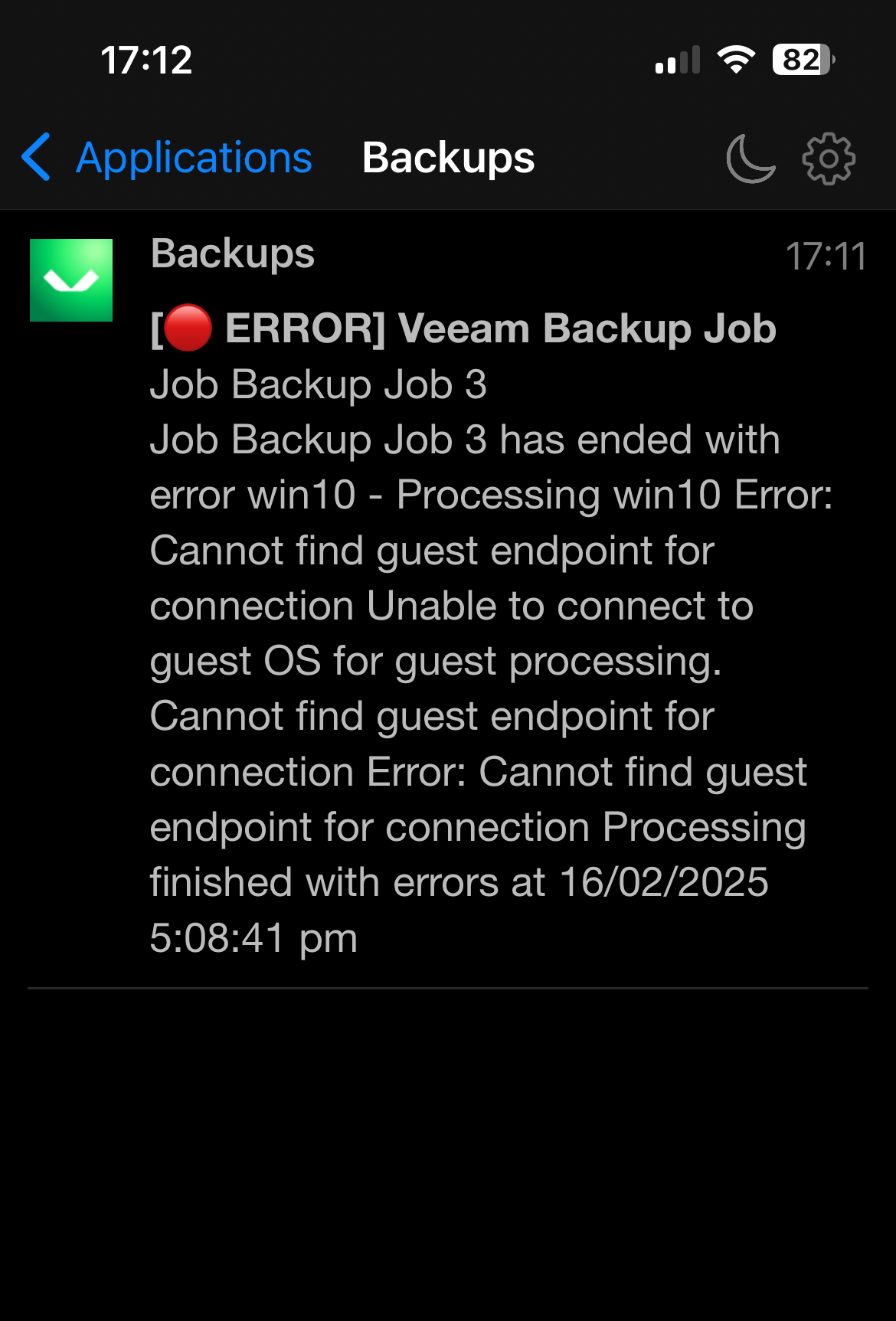
With everything in place, I’m going to run the backup job again to trigger the alarm once more. A notification was sent to my phone shortly after showing some details about the job and why it failed.
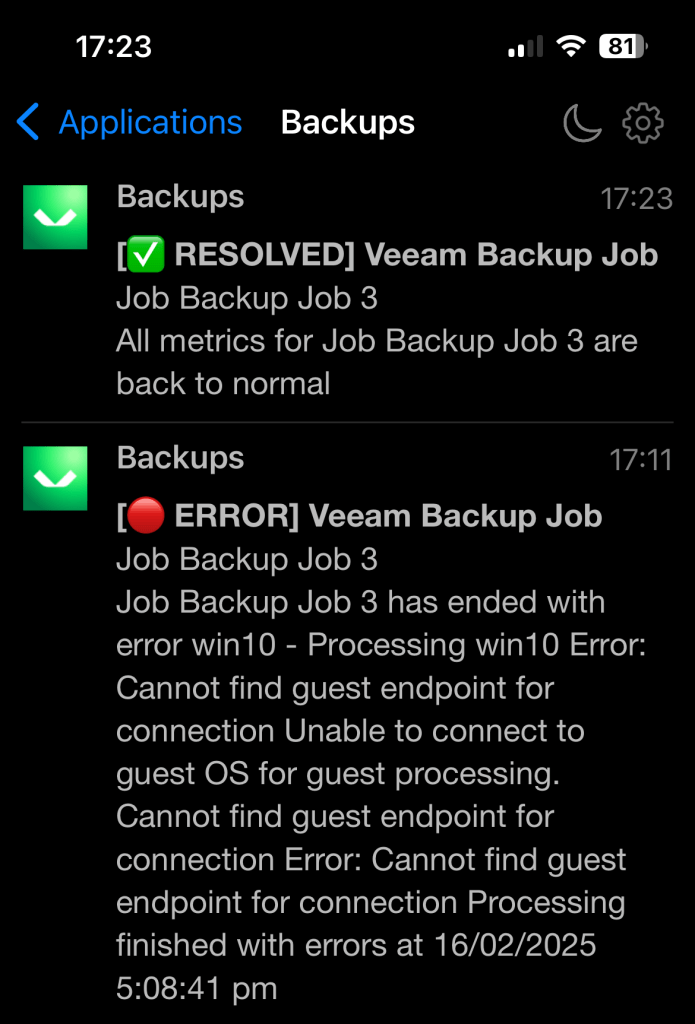
Let’s fix up the backup job and re-run it so that it completes with a successful status. This will change the alarm to a “Resolved” status which will trigger the script. Sure enough, I received another notification:
Wrapping Up
This is just one example of how scripts can be used to receive some useful information about your backup jobs. Feel free to use and adapt the script to your liking.
As you can see, with only a little bit of scripting knowledge you can take full advantage of your Veeam ONE alarms with this powerful feature, taking things up to the next level! Providing alarms with custom scripts gives you complete control in deciding what actions to take based on the outcome of an event. Whether you’re sending push notifications, integrating with other business systems or something else entirely, with scripting, you’re in the drivers seat.
 benharmer.blog
Leave a comment