
One of the most anticipated features of Veeam Backup & Replication version 12 was the change from Microsoft SQL Server to PostgreSQL. Any new installation of v12 will now by default install an instance of PostgreSQL. It’s worth noting though that SQL Server support has not gone away. During the install it is still possible to select SQL Server for the database, however now you must use an existing instance – Veeam will no longer deploy an express instance for you.
So why the change after so long? Arguably there are many reasons but I think the below table sums up the big differentiators between the two.
| Microsoft SQL Server Express | PostgreSQL | |
|---|---|---|
| Maximum database size | 10 GB | No restrictions |
| Maximum compute | 4 CPU cores | No restrictions |
| Maximum memory | 1410 MB | No restrictions |
There is of course the option of using Standard or Enterprise editions of SQL Server however this is usually a costly option where as PostgreSQL is free.
The change is also part of a bigger picture. It is plain to see Veeam are on a journey to make their software capable to run fully open source and moving away from SQL Server is one of the pieces in the puzzle that will make it a reality.
Now we’ve covered the database changes for a new install, what about upgrading from v11 to v12? If you have already upgraded to v12 you may have noticed there was no opinion to change to PostgreSQL during the process. Veeam have done this intentionally, moving the database migration into a separate process which I think it makes sense. Changing from one type of database to another is no small undertaking, let alone during an upgrade. I’m sure most would agree that platform stability and continuity is ultimately the most important outcome of an upgrade.
Next let’s cover when to upgrade. This will ultimately come down to personal preference and the choice will differ between environments. For example, the performance difference of a Veeam instance that backs up a small number of servers will likely be negligible between SQL Server Express and PostgreSQL. However I can see real value in migrating to PostgreSQL for larger Veeam environments that are either running close to the SQL Express limits or those paying licensing costs to run Standard or Enterprise editions.
It’s worth noting that at the time of writing Veeam recommended staying on SQL Server when protecting more than 5000 VM workloads.
The Migration Process
Let’s walkthrough the process of migrating the database to PostgreSQL. For this process I’ll be using my lab backup server which is running a local instance of SQL Server Express with Veeam already upgraded to v12.
I’ll be following the official Veeam migration process which I would highly recommend as it guarantees the best chance of success and provided you have a support contract, Veeam can be engaged should anything go wrong.
https://helpcenter.veeam.com/docs/backup/vsphere/vbr_config_migrate_to_postgresql.html?ver=120: Migrating Veeam Backup & Replication to PostgreSQLInstall PostgreSQL
If you already have a running instance of PostgreSQL you can skip this step.
Before you can migrate away from SQL Server you need to have a running instance of PostgreSQL. The installation and configuration of PostgreSQL is not actually covered in the Veeam guide but I’ll cover it here since it is a pre-requisite.
There are a few versions of PostgreSQL that Veeam supports as listed in the System Requirements. I’ll be covering the process for installing 15.1 since it is bundled with the v12 installer ISO however it is worth noting that Veeam strongly recommend using the latest 15.x version of PostgreSQL available here.
Mount the v12 ISO. You will find the PostgreSQL installer located in Redistr\x64\PostgreSQL\15.1-1. Run postgresql-15.1-1-windows-x64.exe and click Next to get started. If using a downloaded installer the executable will be similarly named and the below instructions should be the same.
Choose an installation directory – I’m going to use the default.

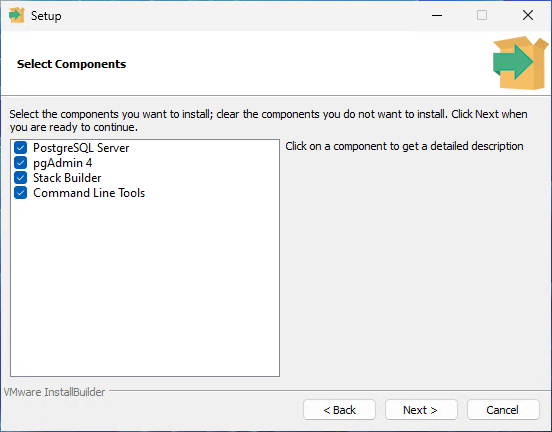
Now select the components to be installed. I’m going to leave everything selected but you could just select PostgreSQL Server here by itself.
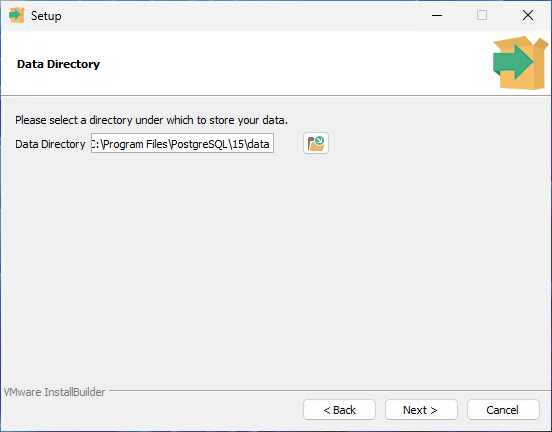
Next choose where to store your data – again I’m going to use the default.
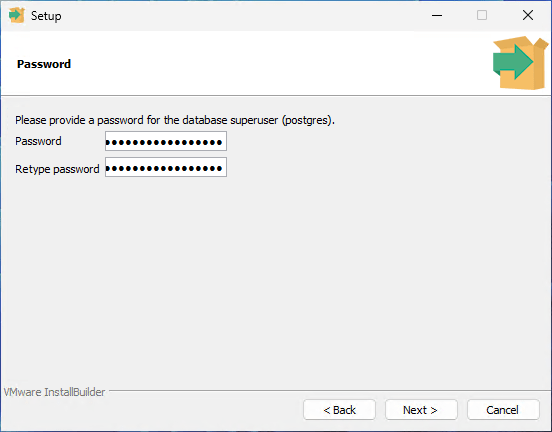
Enter a password for the postgres user. Made a note of this password as it will be needed later in the migration.
Next select the port number to use. Veeam does accept a customised port but I’m going to leave it as the default 5432. Click Next.
Under the Advanced Options section I left the locale as Default Locale. Click Next.
Now you will be shown a summary of the installation options selected.

Click Next then Next once more to start the installation.

Once the installation is finished click Finish.

Backup Configuration
This first part is important. Make sure there are no backups or restores running. All scheduled jobs need to be disabled before proceeding any further. If you don’t do this it isn’t the end of the world but it means there are a few extra steps at the end of the migration.
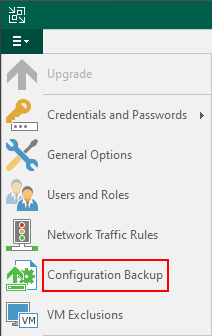
Next we will take a backup of the configuration. From the menu select Configuration Backup then Backup now.
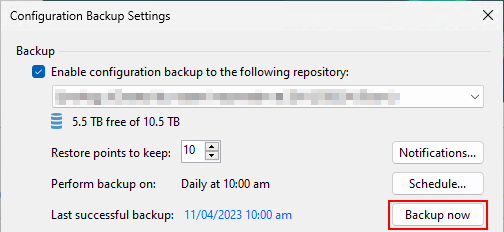
Restore Configuration
Now we will use the configuration backup we just took to migrate over to PostgreSQL. This step assumes you will be migrating to a PostgreSQL instance hosted on the backup server.
From the Configuration Backup Settings window click Restore.
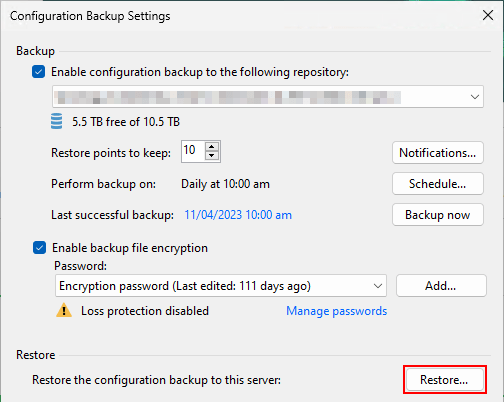
Under Restore Mode select Migrate

Select the backup repository your configuration backup files are stored in and browse to the configuration backup taken in the previous step. Make sure you choose the most recent backup file to restore from. Click Analyze.

The next screen will show details about the selected configuration backup file. Check it is the correct one and click Next to continue.

Next enter the encryption password and click Validate.
Change the Database dropdown from Microsoft SQL Server to PostgreSQL. The Instance name field will change to <HOSTNAME>:<PORT>. Leaving it configured in this way may result in a no pg_hba.conf entry for host error message. If this happens you have 2 options:
The quick fix is to change Instance name to localhost:<PORT> which in this case would be localhost:5432.
If you want to keep the format as is, there is a second option which involves editing the pg_hba.conf file located in C:\Program Files\PostgreSQL\15\data as explained in this post.
Open the file in a text editor and scroll to the bottom. It will look like below:
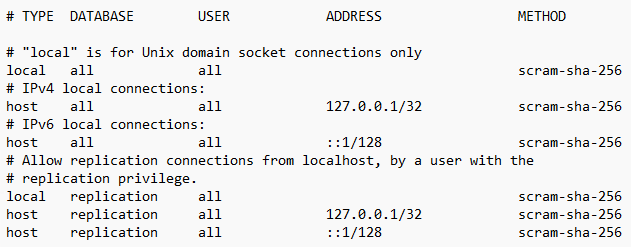
Edit both the IPv4 and IPv6 addresses to match that of your backup server and save the changes.

The Database name field will default to VeeamBackup. Since the database doesn’t exist, Veeam will create it.
Change the Authentication to Native authentication using the following credentials. Enter postgres in the Login name field and the password set during the PostgresSQL installation step.
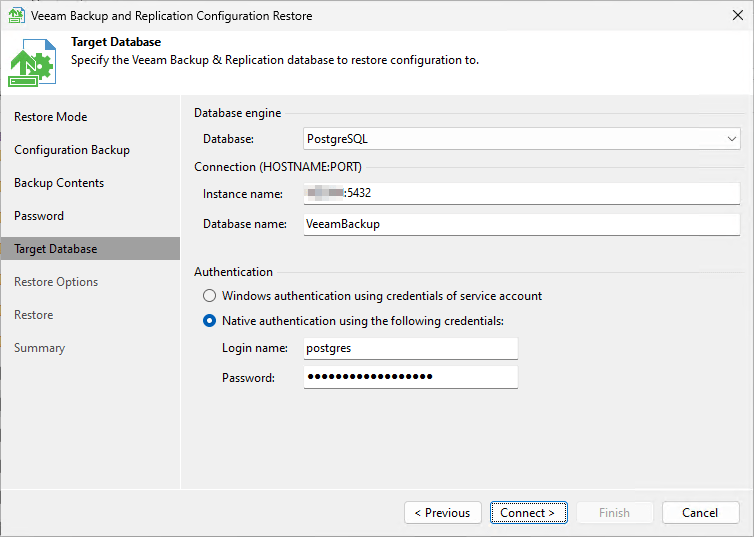
Click Connect. If everything has been configured correctly, you will be presented with a warning message stating that the VeeamBackup database will be created. Click Yes to continue.
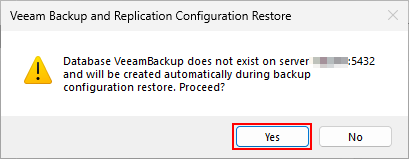
Under Restore Options leave the defaults and click Restore.

At the prompt click Yes to close the Veeam console window.
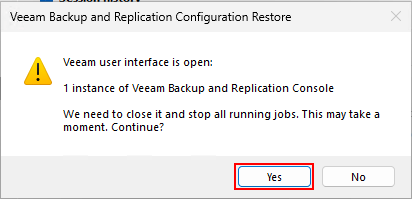
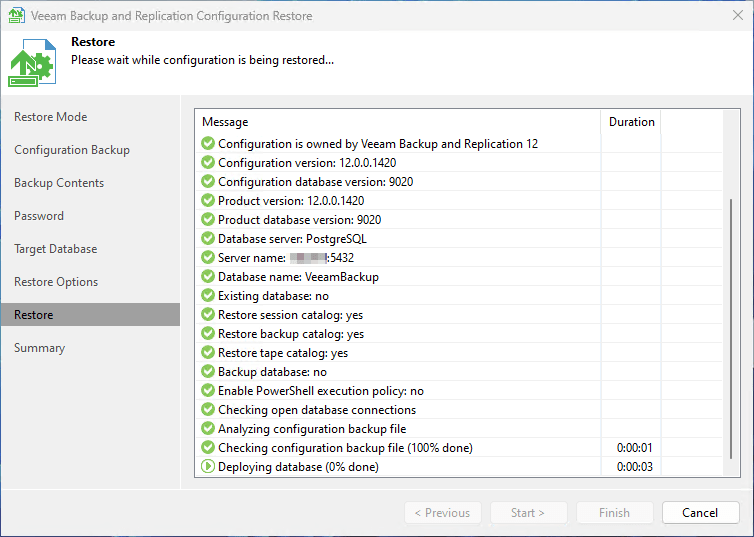
The Veeam services will then be stopped and the restore process will begin.
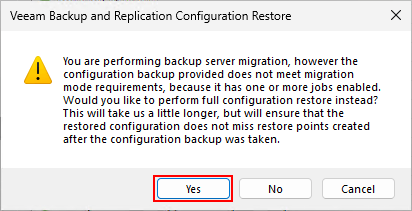
If any jobs were not disabled before taking the configuration backup, you may find the below popup box appears during the restore. In this case, click Yes to perform a full configuration restore. This will result in a couple of extra steps that need to be performed after the migration (more on that below).
Make sure the restore completed successfully then click Next to move onto the final step in the wizard.

The Credentials section gives you the option to amend any of your saved credentials. It is unlikely these will need to be changed as the backup we restored from was taken only moments ago. If by chance you do need to update something, highlight the account, click Edit and amend the username and or password.

Now click Start which will start up the Veeam services again. The Summary page should show that the migration has competed successfully. Leave the Launch the Backup & Replication user interface tick box selected and click Finish to open the Veeam console.

The database migration is now complete! You can now move onto the Post Migrations section.
If you received this popup earlier as a result of jobs not being disabled read on…
You’ll notice below there is some messaging on the summary page advising that Veeam will synchronize the restored configuration data. Leave the Launch the Backup & Replication user interface tick box selected and click Finish to open the Veeam console and check the synchronization process.

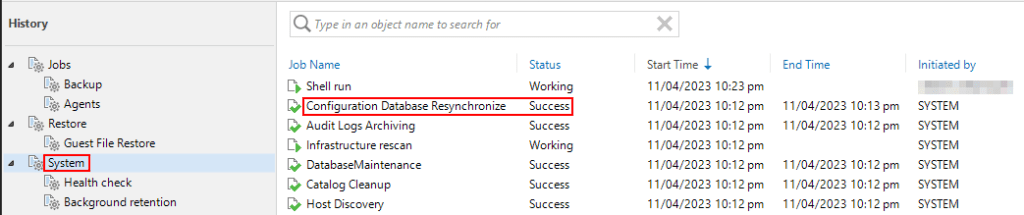
Once it opens go to the History tab and select System from the management tree. Look for the Configuration Data Resynchronize job and ensure it has completed successfully. If it is still running wait for it to complete.
Post Migration Tasks
Now that the migration is complete you can enable all your jobs again. As with any change to the environment I would recommend ensuring that jobs are able to run and complete successfully, including the configuration backup job.
This next step is completely optional and gives you the ability to configure how much resource PostgreSQL consumes.
From the main menu open Console > PowerShell
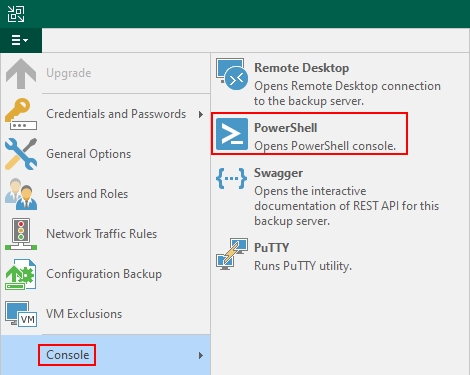
Now enter this command:
Set-VBRPSQLDatabaseServerLimits -OSType Windows -CPUCount <# CPU Cores> -RamGb <RAM GB>Set the CPU and RAM switches to your requirements then press enter.

If the command is accepted you will be prompted to restart the postgres service (postgresql-x64-15) for the changes to take affect.
Lastly, if you are using a SQL Express instance we have the option to free up some system resources still in use by SQL. I can see that the instance is still using up memory on my backup server even though it is no longer in use by Veeam!

Let’s open SQL Server Configuration Manager and stop the running services



Now for each service right click and select Properties. Click on the Service tab and change Start Mode to Disabled. Click Apply and OK. This will prevent the services from starting up again after a reboot

Once the services are stopped you should find it frees up some resource.

Stopping and disabling SQL services is as far as I will go with this. You could take it a step further and uninstall the components completely however it doesn’t take up much space and keeping SQL around does give you the option to migrate back to it in the future for whatever reason.
 benharmer.blog
Leave a comment