Some Background
Since Veeam Backup & Replication version 10 we have been able to make use of Fast Clone, a technology which allows the referencing of existing data blocks on volumes instead of copying data blocks between files. Synthetic backups for example benefit massively from fast clone resulting in space savings on the backup repository and a reduced operation window.
Veeam supports fast clone across a variety of repository types and in this post I’m going to be looking specifically at Microsoft Windows repositories which utilises the ReFS file system available in Windows Server 2016/Windows 10 and later operation systems along with Microsoft’s block cloning technology.
Once ReFS volumes begin to be filled with backup data, you start to see the true potential of the block cloning space savings. But how do you see these savings? Well, there are a few ways which I’ll go through.
Method 1 – Veeam Backup & Replication Console
Under Backup Infrastructure > Backup Repositories there are 3 columns relating to storage – Capacity, Free and Used Space.
- Capacity speaks for itself and is the size of the underlying volume the repository is configured on.
- Free is the actual free space remaining on the volume taking into account the block cloning
- Used Space shows the ‘real’ space consumption as if block cloning wasn’t factored in
Using these values we can calculate the space savings from fast clone using this formula: Used Space – (Capacity – Free) = Fast Clone savings
Lets take a look using an example:

22 – (60 – 49.9) = 11.9 TB saved
As you can see, this repository is saving just over 50% due to the block cloning feature. Working out the savings of a repository using this method isn’t too difficult but a calculation is needed to get the value of savings and the process needs to be repeated for each repository.
Method 2 – Windows Explorer
The only way to show the used space of a volume that includes block cloning through the GUI in Windows is at the root of the disk. On the repository server open the properties of the disk to get the used space.
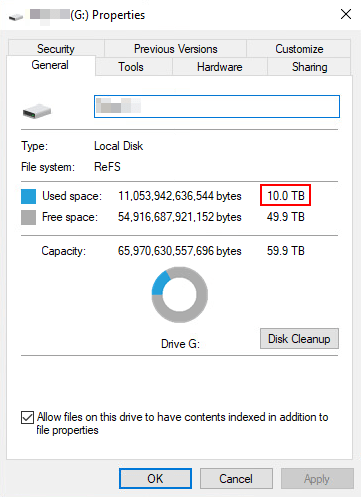
Next navigate to the path of the backup repository (as shown in the Veeam console) and open the properties of the folder to see the used space. This value represents the consumption without block cloning.
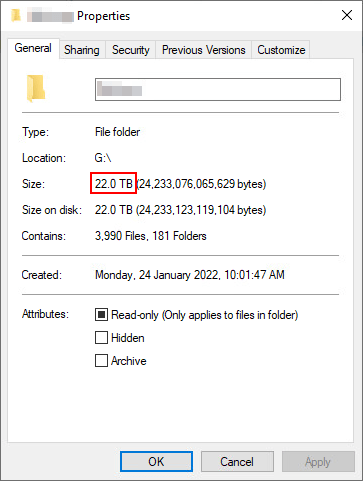
Subtracting the used space value in the disk properties from the backup repository folder value gives us the fast clone savings value: 22 – 10 = 12 TB. There is a very minor difference between the block clone savings value in method 1 and 2 due to the way Veeam and Windows handle the total capacity of the volume.
While this method is much simpler to calculate, it still involves repeating the above steps for each repository and in addition could involve logging onto multiple repository servers.
Method 3 – BlockStat Executable
The last method is my preferred method and involves a command line utility called BlockStat which was written by Timothy Dewin @ Veeam. Blockstat has the ability to analyse folder content and report how much space is being saved based on the number of times blocks are being reused.
Lets look at an example of the utility processing a folder of Veeam backup files. Using the -d switch in the example, we can point blockstat at a folder. Once the contents have been analysed the results are summarised as shown below.
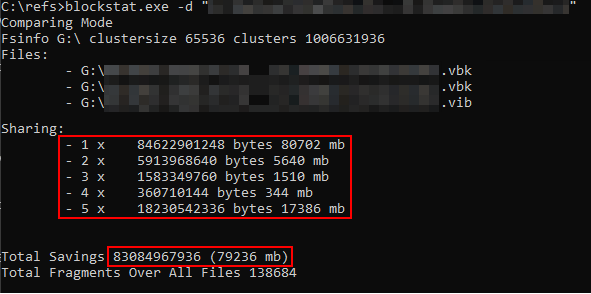
- The Total Savings shows the amount of space savings for the specified folder in both bytes and megabytes.
- The Sharing section shows a breakdown of the space savings in both bytes and megabytes by the number of times a block was referenced. This can be a little confusing as summing these numbers doesn’t add up to the total savings value. This is because the values shown here need to be multiplied by the number of times they were referenced and they also include an additional reference to the original data value. This can be made clearer in the table below.
| Block References | Megabytes | Multiplier | Savings (Megabytes) |
|---|---|---|---|
| 1 | 0 | x0 | 0 |
| 2 | 5640 | x1 | 5640 |
| 3 | 1510 | x2 | 3020 |
| 4 | 344 | x3 | 1032 |
| 5 | 17386 | x4 | 69544 |
| Total | 79236 |
Since blockstat can be scripted and executed with a variety of different switches available, it is possible to retrieve the same data we did in methods 1 and 2 through automation. There are some great examples of different ways to achieve this from the Blockstat page including using PowerShell.
The PowerShell Script
Features:
- Query space savings across multiple repositories and volumes formatted with ReFS file system
- Execute from a single location
- Emails results in tabular format including:
- Space savings per backup repository volume as a percentage
- Total space savings percentage per backup repository
Total space savings percentage across all backup repositories
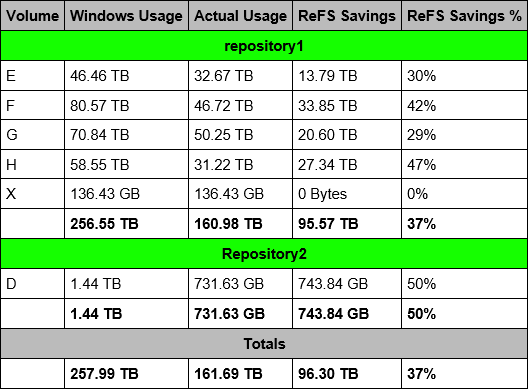
Prerequisites:
- Download blockstat and extract it into your working directory (see table below)
- Download the PowerShell script below and save it into your working directory (see table below)
- For each backup repository listed in the Repo-Servers function:
- Open Remote PowerShell TCP port 5985 from the server where the script will be ran to the repository
- Run Enable-PSRemoting -Force on the repository
- Create a service account with local admin rights on the repository (credentials must be the same for each repository for the script to work)
Usage:
- Running the script without any parameters will query all volumes of all listed repositories
- Optional switches:
- -server <repository server> returns data for all refs volumes on the repository. The specified repository server can be by hostname or IP address however the hostname must be resolvable
- -volume <drive letter> returns data for the selected refs volume. Typically this is to be used with the -server switch.
- -email <email address> sends results to specified address rather than the one specified in the Email-Results function
- -folders <number> limits the number of folders returned on a volume (should only be used for testing purposes)
- -verbose provides informational output useful for debugging
- Runs unattended by default but can executed interactively
Notes:
- Script processing is resource intensive and can take several hours to complete when ran without switches depending on the number of files and size of the data being processed
- Above switches can be ran individually or together to get more specific results
- Error validation is in place to ensure specified repository servers exist.
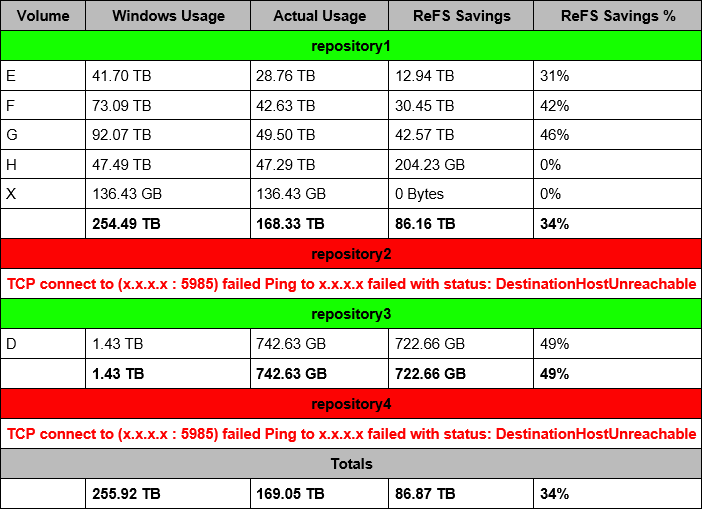
For the script to work in your environment, a few of the variables need to be configured. These are highlighted in the script code at the bottom of the post and summarised in the table below.
| Function | Variable | Required | Notes |
|---|---|---|---|
| N/A | $workingDir | Yes | Enter the directory on the server where blockstat.exe and the PowerShell script have been saved. E.g. C:\Scripts\Veeam |
| Authenticate-Repo | $credential = Import-CliXml -Path “Path to xml credentials file” | Yes | By default, the script is designed to run unattended via a scheduled task. For this to work we need a way to provide the script credentials without the need for user interaction. Export-CliXml is a great way to achieve this. Credentials are stored in a file in an encrypted format. Use the service account created in the prerequisites step here. The article below has a good write up on how to store credentials using Export-CliXml. https://www.jaapbrasser.com/quickly-and-securely-storing-your-credentials-powershell/ |
| Repo-Servers | $repoServers | Yes | Comma separated list of repository servers to run blockstat against. List can contain hostname or IP address of the repository server (names must be resolvable). E.g. “repository1”, “repository2”. |
| Initial-Setup | $global:dir | Yes | Directory where blockstat executable will be copied to on the repository server. E.g. “C:\blockstat” |
| Email-Results | $from | Yes | Your sender address |
| Email-Results | $to | Yes | Your receiver address |
| Email-Results | $smtpServer | Yes | Your SMTP server that will send the e-mails |
| Email-Results | $port | No | Port 25 is used by default however you can change this if your SMTP server uses a different port. |
Note that $auth = Authenticate-Repo -prompt $false can be changed to $auth = Authenticate-Repo -prompt $true when running the script interactively. This will prompt for credentials which should have administrative privileges to the repository server.
#working directory
$workingDir = "Path to working directory"
function Authenticate-Repo
{
[cmdletbinding()]
param(
[Parameter(Mandatory, ValueFromPipeline)]
[boolean]$prompt
)
begin
{
if ($prompt -eq $false)
{
$credential = Import-CliXml -Path "Path to xml credentials file" #get credentials to connect to backup repository
}
elseif ($prompt -eq $true)
{
$credential = Get-Credential -Message "Enter credentials with admin privileges to Veeam repository servers"
}
}
end
{
return $credential
}
}
Function Repo-Servers
{
[CmdletBinding()]
param()
Process
{
#list of repository servers to process
$repoServers =
"repository1",
"repository2"
}
End
{
return $repoServers
}
}
Function Initial-Setup
{
[CmdletBinding()]
param(
[Parameter(Mandatory, ValueFromPipeline)]
$serverList
)
Begin
{
$global:dir = "Path to blockstat directory on backup repository"
[hashtable]$setupArray = @{}
$setupArray.dir = $dir
$connectionTestArray = @()
}
Process
{
foreach ($serverListLoop in $serverList)
{
#check if remote powershell port is open on repo
$connectionTest = Test-NetConnection -ComputerName $serverListLoop -CommonTCPPort WINRM -WarningVariable TcpError
#add any netconnection warnings to variable for later
$connectionTest | Add-Member -MemberType NoteProperty -Name "TcpError" -Value "$TcpError"
#open session to repo if connection was successful, copy blockstat tool and create directories
if ($connectionTest.TcpTestSucceeded -eq $true)
{
#use supplied credentials to open session
try
{
$session = New-PSSession -ComputerName $connectionTest.ComputerName -Credential $credentials -ErrorVariable sessionError -ErrorAction Stop
#add session connection result and any warnings to variable for later
$connectionTest | Add-Member -MemberType NoteProperty -Name "sessionTestSucceeded" -Value $true
$connectionTest | Add-Member -MemberType NoteProperty -Name "sessionError" -Value $null
$createDir = Invoke-Command -Session $session -Scriptblock {
if (-not(Test-Path -Path $using:dir))
{
New-Item -Path "$using:dir\logs" -ItemType Directory
}
else
{
Remove-Item -Path "$using:dir\logs\*" -Recurse
}
}
if ($createDir -ne $null)
{
$copy = Copy-Item –Path "$workingDir\blockstat.exe" –Destination "$dir" -ToSession $session
}
#remove session
Get-PSSession | Remove-PSSession
}
catch
{
#add session connection result and any warnings to variable for later
$connectionTest | Add-Member -MemberType NoteProperty -Name "sessionTestSucceeded" -Value $false
$sessionErrorReplace = $sessionError.Message -replace 'The running command stopped because the preference variable "ErrorActionPreference" or common parameter is set to Stop: ', ''
$connectionTest | Add-Member -MemberType NoteProperty -Name "sessionError" -Value $sessionErrorReplace
}
}
#store results in array
$connectionTestArray += $connectionTest
}
#add results to repo hashtable
$setupArray.repo = $connectionTestArray
}
end
{
return $setupArray
}
}
function Format-Size() {
[CmdletBinding()]
param(
[Parameter(Mandatory, ValueFromPipeline)]
[double]$SizeInBytes
)
process
{
#convert byte value to readable storage unit
switch ([math]::Max($SizeInBytes, 0)) {
{$_ -ge 1PB} {"{0:N2} PB" -f ($SizeInBytes / 1PB); break}
{$_ -ge 1TB} {"{0:N2} TB" -f ($SizeInBytes / 1TB); break}
{$_ -ge 1GB} {"{0:N2} GB" -f ($SizeInBytes / 1GB); break}
{$_ -ge 1MB} {"{0:N2} MB" -f ($SizeInBytes / 1MB); break}
{$_ -ge 1KB} {"{0:N2} KB" -f ($SizeInBytes / 1KB); break}
default {"$SizeInBytes Bytes"}
}
}
}
function Refs-Savings
{
[cmdletbinding()]
#function accepts optional parameters
param(
[Parameter(ValueFromPipeline)]
[string]$server,
[string]$volume,
[int]$folders,
[string]$email
)
begin
{
#check if verbose switch was used with function and save for later
if ($VerbosePreference -eq "Continue")
{
#verbose switch used
$verbosePreferenceSession = "Continue"
}
else
{
$verbosePreferenceSession = "SilentlyContinue"
}
#use repo list in repo-servers function if server parameter not used
if ($server)
{
$serverList = $server
}
else
{
$serverList = Repo-Servers
}
#get repos ready to use blockstat tool
$setup = Initial-Setup -serverList $serverList
$refs = @()
}
process
{
foreach ($repoLoop in $setup.repo)
{
"&&&&&&" | Write-Verbose
$repoLoop | select * | Out-String | Write-Verbose
"&&&&&&" | Write-Verbose
#open session to repo if both tcp and session connections were successful
if ($repoLoop.TcpTestSucceeded -eq $true -and $repoLoop.sessionTestSucceeded -eq $true)
{
$session = New-PSSession -ComputerName $repoLoop.ComputerName -Credential $credentials
$refs += Invoke-Command -Session $session -Scriptblock {
#get all refs volumes if volume parameter not used
if ($using:volume)
{
$getVols = (Get-Volume | Where-Object {$_.FileSystem -eq "ReFS" -and $_.DriveLetter -eq $using:volume})
}
else
{
$getVols = (Get-Volume | Where-Object {$_.FileSystem -eq "ReFS"} | Sort -Property DriveLetter)
}
#set repo session to same verbose state as user set in function - verbose messages will not appear within a scriptblock without this set
$VerbosePreference = $using:verbosePreferenceSession
#only run blockstat tool if refs volumes returned
if ($getVols -ne $null)
{
foreach ($driveLetter in $getVols.DriveLetter)
{
New-Item -Path "$using:dir\logs\$driveLetter" -ItemType Directory | Out-Null
$backupPath = "$($driveLetter):\Backups"
"######" | Write-Verbose
$driveLetter | Write-Verbose
"######" | Write-Verbose
#return list of all veeam related backup files
$fileList = Get-ChildItem -Path $backupPath -Include @("*.vbk"; "*.vib"; "*.vbm"; "*.vsm"; "*.vlm"; "*.vlb") -Recurse | Where-Object {$_.FullName -notlike "$backupPath\ArchiveIndex\*"} | Group-Object DirectoryName
#used for testing when folders parameter specified - only returns limited results
if ($using:folders)
{
$fileList = $fileList | Select -First $using:folders
}
foreach ($file in $fileList)
{
$folderName = "$($file.Name.Split('\')[2])"
"folder name: $folderName" | Write-Verbose
#get size of repo folder in windows
$folderSize = [int64]::Parse(($file.Group | Measure-Object -Property Length -Sum).Sum)
"folder size: $folderSize" | Write-Verbose
#blockstat tool can only process text files with up to 1024 paths - this splits them out into separate files prefixed with _2 _3 etc
if ($file.Group.Count -gt 1024)
{
$tempArray = @()
$numbers = 1..$file.Group.Count
$groupOf = 1024-1
$j = 1
for ($i = 0; $i -le $file.Group.Count; $i += $groupOf)
{
$i | Write-Verbose
$groupOf | Write-Verbose
$group = $i + $groupOf
$group | Write-Verbose
"[$i..$group]" | Write-Verbose
$numbers[$i..$group] -join "," | Out-String | Write-Verbose
#create text file for each folder in fileList containing all file paths for that folder
$file.Group[$i..$group].FullName | Set-Content -Encoding Unicode "$using:dir\logs\$driveLetter\$($folderName)_$($j).txt"
#run blockstat tool against text file and output to xml file - use out-null to prevent "<file> does not exit" messages (happens when a file is stored in the text file but doesn't exist later on)
Set-Location -Path $using:dir
.\blockstat.exe -x -i "$using:dir\logs\$driveLetter\$($folderName)_$($j).txt" -o "$using:dir\logs\$driveLetter\$($folderName)_$($j).xml" | Out-Null
$xml = [xml](Get-Content "$using:dir\logs\$driveLetter\$($folderName)_$($j).xml")
#get folder savings value from xml file
$folderSavings = [int64]::Parse($xml.result.totalshare.bytes)
"folder savings: $folderSavings" | Write-Verbose
#store values in temporary array
$tempArray += $folderSavings
"---" | Write-Verbose
$i++
$j++
}
#sum values from temporary array
$folderSavingsSum = ($tempArray | Measure-Object -Sum).Sum
$folderSavingsSum | Out-String | Write-Verbose
#store values in array
$totalSavings = @{repoServer = $using:repoLoop.ComputerName; volume = $driveLetter; folderName = $folderName; folderSize = $folderSize; folderSavings = $folderSavingsSum; TcpTestSucceeded = $using:repoLoop.TcpTestSucceeded; TcpError = $using:repoLoop.TcpError; sessionTestSucceeded = $using:repoLoop.sessionTestSucceeded; sessionError = $using:repoLoop.sessionError}
New-Object PSObject -Property $totalSavings
$totalSavings | Out-String | Write-Verbose
}
else
{
#create text file for each folder in fileList containing all file paths for that folder
$file.Group.FullName | Set-Content -Encoding Unicode "$using:dir\logs\$driveLetter\$folderName.txt"
#run blockstat tool against text file and output to xml file - use out-null to prevent "<file> does not exit" messages (happens when a file is stored in the text file but doesn't exist later on)
Set-Location -Path $using:dir
.\blockstat.exe -x -i "$using:dir\logs\$driveLetter\$folderName.txt" -o "$using:dir\logs\$driveLetter\$folderName.xml" | Out-Null
$xml = [xml](Get-Content "$using:dir\logs\$driveLetter\$folderName.xml")
#get folder savings value from xml file
$folderSavings = [int64]::Parse($xml.result.totalshare.bytes)
"folder savings: $folderSavings" | Write-Verbose
#store values in array
$totalSavings = @{repoServer = $using:repoLoop.ComputerName; volume = $driveLetter; folderName = $folderName; folderSize = $folderSize; folderSavings = $folderSavings; TcpTestSucceeded = $using:repoLoop.TcpTestSucceeded; TcpError = $using:repoLoop.TcpError; sessionTestSucceeded = $using:repoLoop.sessionTestSucceeded; sessionError = $using:repoLoop.sessionError}
New-Object PSObject -Property $totalSavings
$totalSavings | Out-String | Write-Verbose
}
"-------" | Write-Verbose
}
}
}
else
{
#store values in array
$totalSavings = @{repoServer = $using:repoLoop.ComputerName; volume = $null; folderName = $null; folderSize = $null; folderSavings = $null; TcpTestSucceeded = $using:repoLoop.TcpTestSucceeded; TcpError = $using:repoLoop.TcpError; sessionTestSucceeded = $using:repoLoop.sessionTestSucceeded; sessionError = $using:repoLoop.sessionError}
New-Object PSObject -Property $totalSavings
$totalSavings | Out-String | Write-Verbose
}
}
#remove session
Get-PSSession | Remove-PSSession
}
else
{
#store values in array
$totalSavings = @{repoServer = $repoLoop.ComputerName; volume = $null; folderName = $null; folderSize = $null; folderSavings = $null; TcpTestSucceeded = $repoLoop.TcpTestSucceeded; TcpError = $repoLoop.TcpError; sessionTestSucceeded = $repoLoop.sessionTestSucceeded; sessionError = $repoLoop.sessionError}
$refs += New-Object PSObject -Property $totalSavings
$totalSavings | Out-String | Write-Verbose
}
}
}
end
{
"--------" | Write-Verbose
$refs | Out-String | Write-Verbose
"--------" | Write-Verbose
"++++++++" | Write-Verbose
($refs | Group-Object repoServer) | Out-String | Write-Verbose
$email | Write-Verbose
#group results by repo server
return Email-Results -results ($refs | Group-Object repoServer) -email $email
}
}
function Email-Results
{
[cmdletbinding()]
param(
[Parameter(Mandatory, ValueFromPipeline)]
[array]$results,
[Parameter(ValueFromPipeline)]
[string]$email
)
begin
{
"^^^^^^^^^" | Write-Verbose
$results | Out-String | Write-Verbose
"^^^^^^^^^" | Write-Verbose
#setup email preferences
$from = "sender address"
if ($email)
{
$email | Write-Verbose
$to = $email
}
else
{
$to = "receiver address"
}
$smtpServer = "SMTP server"
$port = 25
$subject = "ReFS Repository Savings"
#create email body in html - results formatted in table
$body += "
<style>
body {font-family:Arial; font-size: 10pt;}
table {border: 1px solid black; border-collapse: collapse;}
tr.total {font-weight: bold;}
th {border: 1px solid black; padding: 5px;}
th.header {background: #bbbbbb;}
th.pass {background-color: #15ff00;}
th.fail {background-color: #fc0303;}
th.fail2 {color: #fc0303;}
td {border: 1px solid black; padding: 5px}
</style>
<table>
<tr>
<th class='header'>Volume</th>
<th class='header'>Windows Usage</th>
<th class='header'>Actual Usage</th>
<th class='header'>ReFS Savings</th>
<th class='header'>ReFS Savings %</th>
</tr>"
}
process
{
foreach ($result in $results)
{
"Repo server: $($result.name)" | Write-Verbose
#colour code the server name cell based on connection result and returned volumes
if ($result.Group.TcpTestSucceeded -eq $false)
{
$body += "
<tr>
<th class='fail' colspan='5'>$($result.name)</th>
</tr>
<tr>
<th class='fail2' colspan='5'>$($result.Group.TcpError)</th>
</tr>"
}
elseif ($result.Group.TcpTestSucceeded -eq $true -and $result.Group.sessionTestSucceeded -eq $false)
{
$body += "
<tr>
<th class='fail' colspan='5'>$($result.name)</th>
</tr>
<tr>
<th class='fail2' colspan='5'>$($result.Group.sessionError)</th>
</tr>"
}
elseif ($result.Group.TcpTestSucceeded -eq $true -and $result.Group.sessionTestSucceeded -eq $true -and $result.Group.volume -eq $null)
{
$body += "
<tr>
<th class='fail' colspan='5'>$($result.name)</th>
</tr>
<tr>
<th class='fail2' colspan='5'>No ReFS volumes</th>
</tr>"
}
else
{
$body += "
<tr>
<th class='pass' colspan='5'>$($result.name)</th>
</tr>"
#group results by volume
$volumeGroup = $result.Group | Group-Object volume
foreach ($volumeGroupLoop in $volumeGroup)
{
#get volume letter
$volumeLetter = $volumeGroupLoop.Group.volume[0]
"volume: " + $volumeGroupLoop.Group.volume[0] | Out-String | Write-Verbose
#sum values of all folder sizes
$volumeUsageSum = ($volumeGroupLoop.Group.folderSize | Measure-Object -Sum).Sum
$volumeUsageSum | Write-Verbose
Format-Size -SizeInBytes $volumeUsageSum | Write-Verbose
#sum values of all folder savings
$volumeSavingsSum = ($volumeGroupLoop.Group.folderSavings | Measure-Object -Sum).Sum
$volumeSavingsSum | Write-Verbose
Format-Size -SizeInBytes $volumeSavingsSum | Write-Verbose
#subtract sum of folder savings from sum of folder sizes
$volumeActualUsageSum = $volumeUsageSum - $volumeSavingsSum
$volumeActualUsageSum | Write-Verbose
Format-Size -SizeInBytes $volumeActualUsageSum | Write-Verbose
$body += "
<tr>
<td>$($volumeLetter)</td>
<td>$(Format-Size -SizeInBytes $volumeUsageSum)</td>
<td>$(Format-Size -SizeInBytes $volumeActualUsageSum)</td>
<td>$(Format-Size -SizeInBytes $volumeSavingsSum)</td>
<td>$(“{0:P0}” -f ($volumeSavingsSum / $volumeUsageSum))</td>
</tr>"
"----------" | Write-Verbose
#store sum of each volume value in new arrays - these contain the total value for all volumes on the repo
[double]$serverUsageSum += $volumeUsageSum
[double]$serverActualUsageSum += $volumeActualUsageSum
[double]$serverSavingsSum += $volumeSavingsSum
}
$body += "
<tr class='total'>
<td></td>
<td>$(Format-Size -SizeInBytes $serverUsageSum)</td>
<td>$(Format-Size -SizeInBytes $serverActualUsageSum)</td>
<td>$(Format-Size -SizeInBytes $serverSavingsSum)</td>
<td>$(“{0:P0}” -f ($serverSavingsSum / $serverUsageSum))</td>
</tr>"
#store sum of each total server value in new arrays - these contain the total value for all volumes on all repos
$totalUsageSum += $serverUsageSum
"totalUsageSum: " + $totalUsageSum | Out-String | Write-Verbose
$totalActualUsageSum += $serverActualUsageSum
"totalActualUsageSum: " + $totalActualUsageSum | Out-String | Write-Verbose
$totalSavingsSum += $serverSavingsSum
"totalSavingsSum: " + $totalSavingsSum | Out-String | Write-Verbose
#reset the server values ready for processing the next repo
Clear-Variable -Name serverUsageSum, serverActualUsageSum, serverSavingsSum
}
}
#only display sum of all server values if at least 1 server has a successful connection and contains volumes
if ($results.Group.TcpTestSucceeded -like "*True*" -and $results.Group.sessionTestSucceeded -like "*True*" -and $results.Group.volume -ne $null)
{
$body += "
<tr>
<th class='header' colspan='5'>Totals</th>
</tr>
<tr class='total'>
<td></td>
<td>$(Format-Size -SizeInBytes $totalUsageSum)</td>
<td>$(Format-Size -SizeInBytes $totalActualUsageSum)</td>
<td>$(Format-Size -SizeInBytes $totalSavingsSum)</td>
<td>$(“{0:P0}” -f ($totalSavingsSum / $totalUsageSum))</td>
</tr>"
}
}
end
{
$body += "
</table>"
$body | Out-String | Write-Verbose
#email results
return Send-MailMessage -From $from -To $to -Subject $subject -SmtpServer $smtpServer -Port $port -BodyAsHtml $body
}
}
$credentials = Authenticate-Repo -prompt $false #authenticate with backup repository
Refs-Savings #execute blockstat on backup repositories
 benharmer.blog
Leave a comment